
DRYCAD Suite | User Documentation | v1.0.0
Table of Contents
- Overview
- Getting Started
- User Interface
- Configuration: settings.ini
- Configuration: Templates File
- Examples
- Troubleshooting
- Version History
1. Overview
DRY0004 – Create New File is a CATIA V5 automation tool that replaces the “File > New” dialog with something that actually knows your company’s standards. Instead of starting every Part, Product, or Drawing from CATIA’s generic blank document, you pick a type and, if one’s configured, a template, and the new document opens already built from your standard starting point.
It also covers the opposite case: when you want a new file that starts as a copy of whatever you already have open, New From Current does exactly that, no manual Save As required.
What it does:
- Creates a new Part, Product, or Drawing document from a predefined template file, selected by type
- Creates a new document using the active document as its source (“New From Current”)
- Falls back to CATIA’s default blank document when no template is configured for the selected type
- Automatically composes a unique name (username + timestamp) for new 3D documents and drawings
- Optionally saves the newly created document straight to a configured folder right after creation
Supported CAD platforms: CATIA V5
Workspace requirement: CATIA V5 must be running. Unlike most other CommandBar tools, DRY0004 does not require a specific document to be active, it runs from the General, Part, Product, Drawing, or Sketch workspace.
2. Getting Started
Prerequisites
- CATIA V5 must be running
- You must be logged in with a valid DRYCAD Suite user account
- A Templates File configured in
settings.iniis recommended but not required, without one, every type simply creates a blank default document (see Section 4)
Launching the Tool
DRY0004 is launched from the DRYCAD Suite CommandBar inside CATIA V5. Click the corresponding button to open the panel.
The tool checks the following conditions at startup, and will show an error and close if any fail:
- A valid user session is found
- CATIA V5 is running
- The active workspace is one of: General, Part, Product, Drawing, or Sketch
If the Templates File path in settings.ini is missing or the file doesn’t exist, the tool still opens normally, the template list is simply empty for every type. If the file exists but references template paths that no longer exist, the tool opens and displays a warning listing the affected templates.
The DRYCAD Menu
Every DRYCAD Suite tool with a user interface includes a menu in the top bar, accessed via the hamburger icon next to the window controls.

| Option | Description |
|---|---|
| Release X.X.X | Displays the current version of the tool. Informational only, not an action. |
| Documentation | Opens this documentation page in your default browser. |
| Open Settings | Opens settings.ini in your system’s default text editor. |
| Clear Settings | Resets settings.ini to a clean default version. Shows a confirmation warning before proceeding. |
3. User Interface
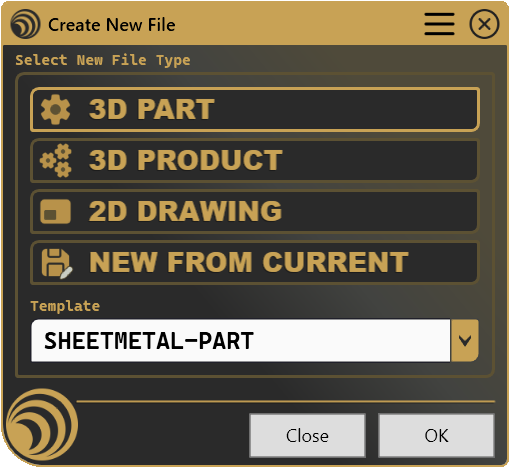
The panel is a single column: a type selector, a template selector, and the action buttons.
3.1 Select New File Type
Four toggle buttons, one active at a time:
| Icon | Button | Creates |
|---|---|---|
 | 3D Part | A new Part, from the matching template if one is selected, otherwise a blank Part |
 | 3D Product | A new Product, from the matching template if one is selected, otherwise a blank Product |
 | 2D Drawing | A new Drawing, from the matching template if one is selected, otherwise a blank Drawing |
 | New From Current | A new document using the active document as its source |
New From Current is only enabled when the active document is a Part, Product, or Drawing that has already been saved to disk. It is disabled for unsaved documents or unsupported document types.
3.2 Template
A dropdown listing every template defined in your Templates File that matches the selected type (see Section 5).
- Disabled when zero or one template matches the selected type. With exactly one match, that template is selected automatically; with zero matches, selecting OK creates a blank default document instead.
- Enabled and required when two or more templates match, you must pick one before OK becomes available.
- Not used for New From Current, which always sources from the active document.
3.3 Close / OK
| Button | Action |
|---|---|
| Close | Closes the panel without creating any document. |
| OK | Creates the new document and closes the panel. Disabled until a type is selected and, if applicable, a template is chosen. Also triggered by pressing Enter. |
4. Configuration: settings.ini
File Location
<install_folder>/DRY0004/settings.iniCan also be opened directly via Open Settings in the DRYCAD Menu (see Section 2), or reset via Clear Settings.
Structure
; -----------------------------------------
; DRY0004 - CREATE NEW FILE - SETTINGS FILE
; -----------------------------------------

; Documents Template File Full Path
DOCUMENTS_TEMPLATE_FILE="D:\path\to\your\templates.txt"

; Save New Documents with temporaty Name (0: False [default], 1: True)
SAVE_NEW_DOCUMENTS=1

; Save New Documents Location Path
; (If SAVE_NEW_DOCUMENTS=1)
SAVE_NEW_DOCUMENTS_LOCATION="D:\path\to\your\save\folder"
Lines starting with ; are comments and are ignored.
Parameters
DOCUMENTS_TEMPLATE_FILE
| Property | Value |
|---|---|
| Section | (none, flat file) |
| Type | File path (string) |
| Required | No |
| Default | (empty) |
The full path to your Templates File, the text file that defines every available template (see Section 5). If left empty or pointing to a nonexistent file, the tool runs with no templates configured; every type falls back to a blank default document.
; Local path
DOCUMENTS_TEMPLATE_FILE="C:\DRYCAD\Templates\templates.txt"

; Network path (shared company configuration)
DOCUMENTS_TEMPLATE_FILE="\\server\drycad\configs\CompanyTemplates.txt"
Tip for teams: Point all users to the same file on a shared network drive. Any update, new templates, corrected paths, is immediately available to everyone.
SAVE_NEW_DOCUMENTS
| Property | Value |
|---|---|
| Section | (none, flat file) |
| Type | Boolean (0 or 1) |
| Required | No |
| Default | 0 |
If 1, every document created by DRY0004 is automatically saved to SAVE_NEW_DOCUMENTS_LOCATION immediately after creation, using the composed name described in Section 1. If 0, the new document is left unsaved in CATIA for you to save manually.
SAVE_NEW_DOCUMENTS_LOCATION
| Property | Value |
|---|---|
| Section | (none, flat file) |
| Type | Folder path (string) |
| Required | Only if SAVE_NEW_DOCUMENTS=1 |
| Default | (empty) |
The folder new documents are saved into when SAVE_NEW_DOCUMENTS=1. The folder is created automatically if it doesn’t exist. If SAVE_NEW_DOCUMENTS=1 but this path is empty, a warning is shown and the document is left unsaved.
SAVE_NEW_DOCUMENTS_LOCATION="D:\Projects\_NewDocuments"5. Configuration: Templates File
The Templates File is a plain text file (.txt) that defines every template available to the tool. The file path is set in settings.ini (see Section 4).
5.1 File Syntax Overview
The file is a flat list, one line per template. No [START]/[END] blocks are used.
; comments not supported here, use // instead
// This is a comment line
TYPE, Template Name, "Full path to template file"
Blank lines and lines starting with // are ignored. A line is only read as a template if it splits into exactly three comma-separated values; any other line is silently skipped. Order in the file determines order in the tool’s dropdown for that type.
5.2 Fields
| Field | Position | Values | Description |
|---|---|---|---|
| Type | 1st | PART, PRODUCT, DRAWING (case-insensitive) | Which “Select New File Type” button this template appears under |
| Name | 2nd | Any string | Display name in the Template dropdown. Automatically converted to UPPERCASE. |
| Path | 3rd | File path, quotes optional | Full path to the template document. Surrounding double or single quotes are stripped automatically. |
If the type isn’t one of the three recognized values, the line is skipped. If the name is empty, the line is skipped. If the path is empty or doesn’t point to an existing file, the line is skipped and reported in the startup warning (see Section 2).
5.3 Full Syntax Reference
TYPE, Template Name, "D:\path\to\template.CATPart"6. Examples
The following examples are drawn from a real company Templates File.
Example 1, One Template per Type
The simplest configuration: a single default template for each document type.
PART, Default, "D:\__CAD\3D_PROJECTS\STARTUP_DOCUMENTS\STARTUP_PART_TYPE01.CATPart"
PRODUCT, Default, "D:\__CAD\3D_PROJECTS\STARTUP_DOCUMENTS\STARTUP_PRODUCT_TYPE01.CATProduct"
DRAWING, A3, "D:\__CAD\3D_PROJECTS\STARTUP_DOCUMENTS\STARTUP_DRAWING_A3L.CATDrawing"
What it creates: With exactly one template per type, the Template dropdown stays disabled and auto-selected, clicking a type button and OK is enough to get a standardized starting document, no extra selection needed.
Key points:
- One line per type is the minimum useful configuration
- The dropdown only becomes interactive once a second template is added for the same type
Example 2, Multiple Templates per Type
Extending Part and Drawing with additional variants gives users a real choice.
PART, Default, "D:\__CAD\3D_PROJECTS\STARTUP_DOCUMENTS\STARTUP_PART_TYPE01.CATPart"
PART, Composite-Part, "D:\__CAD\3D_PROJECTS\STARTUP_DOCUMENTS\STARTUP_PART_TYPE02.CATPart"
PART, Sheetmetal-Part, "D:\__CAD\3D_PROJECTS\STARTUP_DOCUMENTS\STARTUP_PART_TYPE02.CATPart"
DRAWING, A4 PORTRAIT, "D:\__CAD\3D_PROJECTS\STARTUP_DOCUMENTS\STARTUP_DRAWING_A4V.CATDrawing"
DRAWING, A4 LANDSCAPE, "D:\__CAD\3D_PROJECTS\STARTUP_DOCUMENTS\STARTUP_DRAWING_A4L.CATDrawing"
DRAWING, A2, "D:\__CAD\3D_PROJECTS\STARTUP_DOCUMENTS\STARTUP_DRAWING_A2L.CATDrawing"
DRAWING, A1, "D:\__CAD\3D_PROJECTS\STARTUP_DOCUMENTS\STARTUP_DRAWING_A1L.CATDrawing"
DRAWING, A0, "D:\__CAD\3D_PROJECTS\STARTUP_DOCUMENTS\STARTUP_DRAWING_A0L.CATDrawing"
Key points:
- Selecting 3D Part now enables the Template dropdown with three choices:
DEFAULT,COMPOSITE-PART,SHEETMETAL-PART - Selecting 2D Drawing enables a dropdown of five paper sizes/orientations
- Two Part templates point at the same source file (
STARTUP_PART_TYPE02.CATPart) under different names, a legitimate pattern when the same starting geometry serves two naming conventions
7. Troubleshooting
”User not found. Please login and try again.”
The tool could not find a valid DRYCAD Suite user session. Make sure you are logged in to the Suite before launching the tool.
”CATIA is not open. Please open CATIA and try again.”
The tool cannot connect to a running CATIA V5 instance. Launch CATIA V5 first, then run the macro.
”Invalid Workspace”
The active workspace in CATIA isn’t one DRY0004 supports. Switch to the General, Part, Product, Drawing, or Sketch workspace and relaunch the tool.
”The following templates are missing: …”
One or more lines in the Templates File point to a path that doesn’t currently exist. The listed templates are excluded from their type’s dropdown until the path is corrected or the file becomes reachable again (for example, a disconnected network drive).
”An Error occurred creating the desired New Document.”
CATIA failed to create the document, usually because the selected template file is corrupted, incompatible with the installed CATIA version, or was removed after the tool started. Reselect the template or verify the file opens correctly on its own in CATIA.
”Settings require to save the new document, but the destination path is not specified.”
SAVE_NEW_DOCUMENTS=1 is set in settings.ini, but SAVE_NEW_DOCUMENTS_LOCATION is empty. The new document is created but left unsaved. Either set a valid destination path or set SAVE_NEW_DOCUMENTS=0.
The Template dropdown is empty for a type that should have templates
- Check that
DOCUMENTS_TEMPLATE_FILEinsettings.inipoints to the correct, reachable file - Check that the relevant lines have exactly three comma-separated values: type, name, path
- Check that the type in the first field is spelled
PART,PRODUCT, orDRAWING - Check that the file path in the third field still exists on disk
The tool closes automatically after a few seconds
DRY0004 monitors the CATIA process and the active workspace every 5 seconds. It will close automatically if:
- CATIA is closed while the panel is open
- The active workspace changes to one outside General, Part, Product, Drawing, or Sketch (for example, switching into an Analysis or NC workbench)
This is by design to prevent the tool from operating outside a supported context.
8. Version History
| Version | Date | Changes |
|---|---|---|
| 1.0.0 | 2026-07 | Initial release |
DRY0004, Create New File | DRYCAD Solutions | v1.0.0