
DRYCAD Suite | User Documentation | v1.0.0
Table of Contents
- Overview
- Getting Started
- User Interface
- Configuration: settings.ini
- Configuration: Custom Macro Script
- Examples
- Troubleshooting
- Version History
1. Overview
DRY0010 – Documents Manager is a CATIA V5 automation tool built around one recurring problem: too many open windows, too much manual Product assembly, and zero way to pick up tomorrow exactly where you left off today. It brings three things together in one panel: a live manager for every open document, a Product Builder that assembles structures from whatever’s open without a single manual insert, and a Sessions Manager that snapshots the entire workspace so you can restore it in one click.
What it does:
- Lists, filters, and sorts every open document by type and name
- Tiles selected document windows vertically or horizontally, or jumps straight to one
- Closes selected windows with an unsaved-changes warning, and can undo the last close
- Targets a current, selected, or brand-new Product document and inserts other open documents into it, from either the panel selection or a live CATIA selection
- Saves the full set of currently open documents as a named, described session
- Reopens a saved session in full, or opens only specific documents from it
- Updates an existing session with a new name, description, or additional documents
- Shares a saved session with another user (Enterprise only)
Supported CAD platforms: CATIA V5, CATIA 3DX
Workspace requirement: None in particular, the tool accepts the General, Part, Product, Drawing, Sketch workspaces, and any other CATIA workspace. Unlike most CommandBar tools, it does not close itself if you switch workspace while it’s open; it only closes if CATIA itself closes.
2. Getting Started
Prerequisites
- CATIA V5 or CATIA 3DX must be running
- You must be logged in with a valid DRYCAD Suite user account
Launching the Tool
DRY0010 is launched from the DRYCAD Suite CommandBar inside CATIA. Click the corresponding button to open the panel.
The tool checks the following conditions at startup, and will show an error and close if any fail:
- A valid user session is found
- CATIA is running
- The active workspace is one of the supported types
The panel opens on the Sessions tab if no documents are currently open, or on the Documents tab otherwise. A background watchdog checks every 5 seconds whether CATIA is still running, and closes the panel automatically if it isn’t, but, unlike other CommandBar tools, it will not close on its own if you simply change workspace while the panel is open.
The DRYCAD Menu
Every DRYCAD Suite tool with a user interface includes a menu in the top bar, accessed via the hamburger icon next to the window controls.

| Option | Description |
|---|---|
| Release 1.0.0 | Displays the current version of the tool. Informational only, not an action. |
| Documentation | Opens this documentation page in your default browser. |
| Open Settings | Opens settings.ini in your system’s default text editor. |
| Clear Settings | Resets settings.ini to a clean default version. Shows a confirmation warning before proceeding. |
3. User Interface
The panel has two tabs, switched with the DOCUMENTS / SESSIONS toggle buttons in the bottom-right corner, next to Close.
3.1 Documents Tab
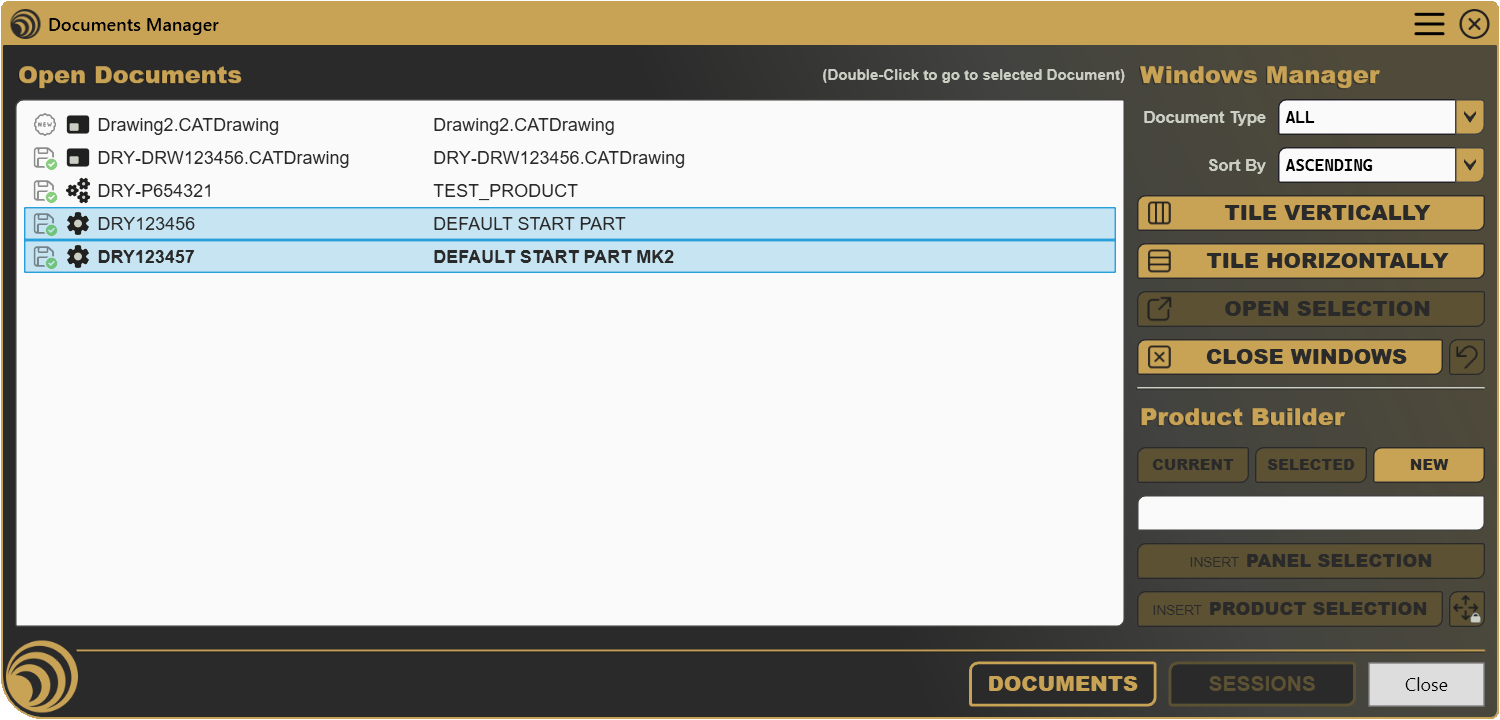
The Documents tab is split into two stacked sections on the right: Windows Manager and Product Builder, alongside the open documents list on the left.
3.1.1 Open Documents (List)
Lists every currently open Part, Product, and Drawing, showing a save-status icon, a document-type icon, and the two properties configured in settings.ini (see Section 4). Multi-select is supported (click-drag or Ctrl/Shift-click). Double-clicking an entry switches CATIA straight to that document’s window and closes the panel; single-clicking only selects it.
Note: The list refreshes itself after every action that changes what’s open, closing windows, opening a selection, or reopening closed ones, so it never shows stale entries left over from a previous state.
3.1.2 Windows Manager

| Control | Description |
|---|---|
| Document Type | Filters the list to ALL, PARTS, PRODUCTS, or DRAWINGS. |
| Sort By | Reorders the list: NONE, ASCENDING, DESCENDING, or TYPE. |
| Tile Vertically / Tile Horizontally | Arranges the selected document windows in CATIA using the chosen layout. |
| Open Selection | Opens a new CATIA window for the current document’s other open instances. |
| Close Windows | Closes the selected document windows. |
| Undo Close Windows | Reopens the windows from the most recent Close Windows action. |
Tile Vertically / Tile Horizontally stay disabled until at least two documents are selected, tiling a single window has nothing to arrange. The window that was current before tiling is kept as the anchor whenever it’s part of the selection.
Open Selection only lights up when the active document is a Product and CATIA’s own selection is currently valid for this operation, the tool re-checks this validity every 3 seconds in the background, so the button can go from disabled to enabled on its own as you select things in CATIA without touching the panel.
Close Windows warns before closing anything unsaved (“Some documents are not saved. Do you want to close them anyway?”) and only proceeds on Yes. If CLOSE_PANEL_IF_NO_DOCUMENTS=1 and this close empties the open-documents list entirely, the whole panel closes itself afterward.
Undo Close Windows only tracks the single most recent close, it’s a last-action undo, not a full history, and resets the moment anything is reopened through it.
3.1.3 Product Builder

| Control | Description |
|---|---|
| Current | Targets the active document, if it’s a Product. |
| Selected | Targets the single selected document in the Open Documents list, if it’s a Product. |
| New | Targets a brand-new, not-yet-created Product. |
| Target Product field | Read-only display of the current target’s name. |
| Insert Panel Selection | Inserts the documents selected in the Open Documents list into the target. |
| Insert Product Selection | Inserts whatever is currently selected in CATIA’s active Product into the target. |
| Keep Position | Toggle, preserves the inserted items’ original position/orientation instead of resetting it. |
Current and Selected both require the candidate document to actually be a Product, a Part or Drawing can be a source to insert, never a target. New needs at least one Part or Product already open (there has to be something to build from); it proposes a name from DEFAULT_NAME_FOR_NEW_PRODUCT_BUILDER, auto-incrementing (.2, .3, …) if that name is already in use among open documents.
Insert Panel Selection requires a target plus a panel selection that doesn’t include the target itself and contains only Parts or Products (never a Drawing). Insert Product Selection and Keep Position instead depend on CATIA’s live selection: both stay disabled until the active document is a Product and the current CATIA selection validates, the same background check described under Open Selection above. Both insert actions close the panel automatically on success, and show an error dialog instead if the underlying CATIA operation fails.
3.2 Sessions Tab
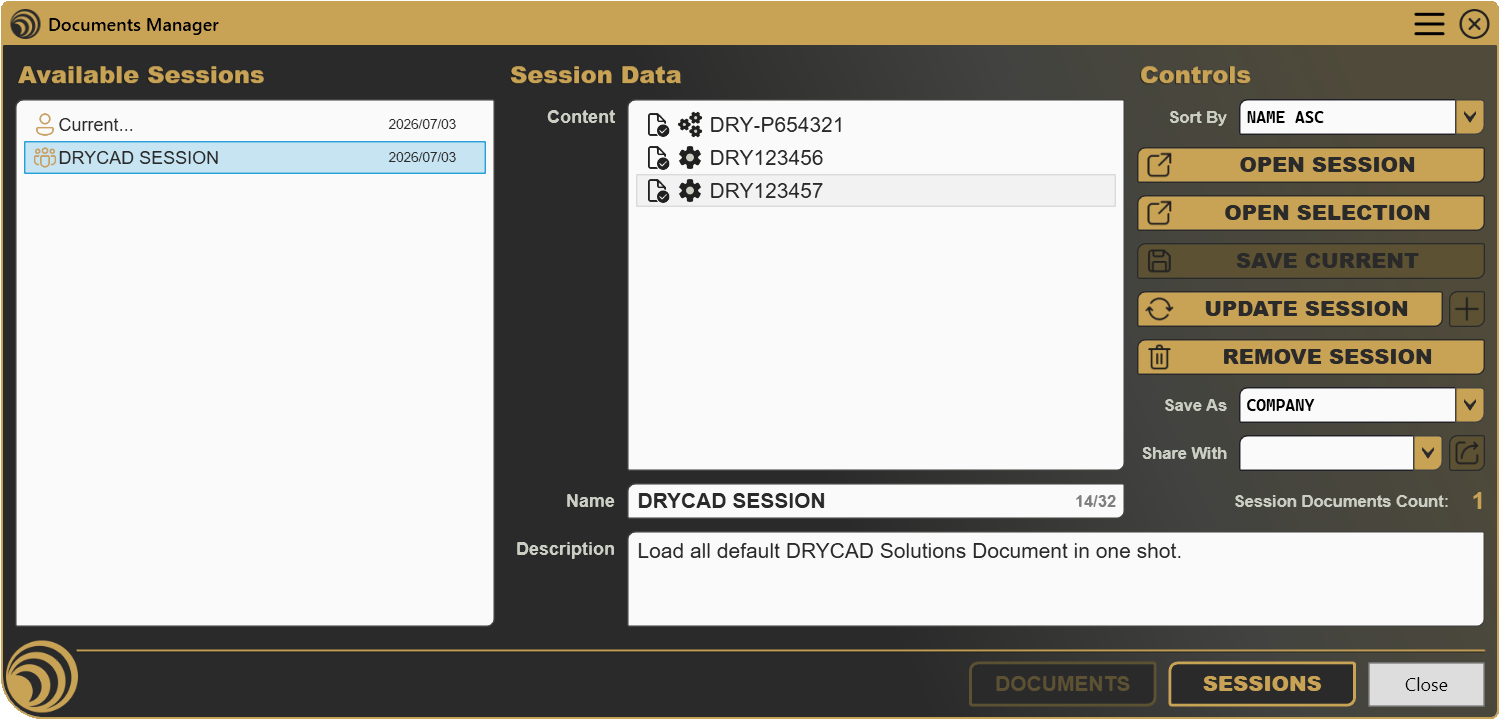
The Sessions tab pairs a session list on the left with session content, metadata, and action controls on the right.
3.2.1 Available Sessions (List)
Lists the current, unsaved working session first (only when at least one document is open), followed by every previously saved session, each showing an owner icon, the session name, and its creation date. Double-clicking a session opens every document that belongs to it.
3.2.2 Session Data

- Content, the documents belonging to the selected session, each shown with an availability icon (whether the file can still be found on disk) and a document-type icon. Selecting specific entries here scopes both Open Selection (Section 3.2.3) and the Session Documents Count to just that subset.
- Name, editable, up to 32 characters, with a live character counter (
00/32). Must be at least 5 characters and cannot match the reserved current-session name (CURRENT_SESSION_DEFAULT_NAME, see Section 4), that name is permanently reserved for the unsaved working session. - Description, editable, multi-line free text with no length limit.
Note: Editing Name or Description immediately marks the session as “edited” internally, which changes what Update Session does, see below.
3.2.3 Controls

| Control | Description |
|---|---|
| Sort By | NONE, NAME ASC/DESC, DATE ASC/DESC for every license; CREATED BY ASC/DESC is added for Enterprise users. |
| Open Session | Opens every document belonging to the selected session. |
| Open Selection | Opens only the documents selected in the Content list. |
| Save Current Session | Saves the current set of open documents as a new session, using the Name and Description fields. |
| Update Session | Either saves edits to the selected session’s Name/Description, or adds newly selected documents to it, see below. |
| Add Current Document | Adds CATIA’s currently active document to the selected session. |
| Remove Session | Deactivates and removes the selected session from the list. |
| Save As | USER or COMPANY. Company-wide sessions can only be created by an Enterprise Admin user, the dropdown itself is disabled for anyone else. |
| Share With (Enterprise only) | Shares the selected session with another Suite user, after a confirmation prompt. Hidden entirely for non-Enterprise or restricted-role users, not just disabled. |
| Session Documents Count | Shows the number of selected documents in Content, or the session’s full document count if none are individually selected. |
Save Current Session stays disabled until the current working session actually has documents in it, the Name is at least 5 characters, isn’t the reserved current-session name, and isn’t already used by another active session.
Update Session does one of two different things depending on state, which is worth knowing so its behavior doesn’t feel inconsistent: if you’ve edited the Name or Description, clicking it saves those edits (and the session jumps to the top of the list); if you haven’t touched Name/Description but the panel’s document selection differs from what the session already contains, clicking it instead adds those newly selected documents to the session. It stays disabled if neither condition is true, or if an edited name fails the same validation as Save Current Session.
Add Current Document specifically targets CATIA’s active document (not the panel selection) and is disabled once that exact document, matched by part number, is already in the session.
Share With requires an Enterprise license, a non-restricted role, a selected session, and a chosen recipient in the dropdown; the confirmation dialog names both the session and the recipient explicitly before anything is shared.
3.3 Close
| Button | Action |
|---|---|
| Close | Closes the panel without opening, saving, or modifying anything. |
4. Configuration: settings.ini
File Location
<install_folder>/DRY0010/settings.iniCan also be opened directly via Open Settings in the DRYCAD Menu (see Section 2), or reset via Clear Settings.
Structure
; ------------------------------------------------
; DRY0010 - OPEN DOCUMENTS MANAGER - SETTINGS FILE
; ------------------------------------------------

[Description]
; Part Description Source
; (1: Definition, 2: DescriptionInst, 3: DescriptionRef, 4: Name [default], 5: Nomenclature, 6: Filename, 7: Custom)
PART_DESCRIPTION_SOURCE=3

; Product Description Source
; (1: Definition, 2: DescriptionInst, 3: DescriptionRef, 4: Name [default], 5: Nomenclature, 6: Filename, 7: Custom)
PRODUCT_DESCRIPTION_SOURCE=3

; Drawing Description Source
; (1: Definition, 2: DescriptionInst, 3: DescriptionRef, 4: Name [default], 5: Nomenclature, 6: Filename, 7: Custom)
DRAWING_DESCRIPTION_SOURCE=3

; Part Custom Description Property (if PART_DESCRIPTION_SOURCE = 7)
PART_CUSTOM_DESCRIPTION_PROPERTY=""

; Product Custom Description Property (if PRODUCT_DESCRIPTION_SOURCE = 7)
PRODUCT_CUSTOM_DESCRIPTION_PROPERTY=""

; Drawing Custom Description Property (if DRAWING_DESCRIPTION_SOURCE = 7)
DRAWING_CUSTOM_DESCRIPTION_PROPERTY=""

; Missing Description Value
MISSING_DESCRIPTION_VALUE="No Description..."

[Open Documents Panel]
; Left Displayed Document Property on Open Documents Panel
; (1: Name [default], 2: PartNumber, 3: Description)
DOCUMENTS_PANEL_LEFT_PROPERTY=2

; Right Displayed Document Property on Open Documents Panel
; (0: None [default], 1: Name, 2: PartNumber, 3: Description)
DOCUMENTS_PANEL_RIGHT_PROPERTY=3

; Left Property Panel Width (in percentage 0 - 100)
DOCUMENTS_PANEL_LEFT_PROPERTY_WIDTH=33

; Close the Panel if there are no more Documents After Close (0: False [default], 1: True)
CLOSE_PANEL_IF_NO_DOCUMENTS=1

; Default Left Property Name for New Product Builder
DEFAULT_NAME_FOR_NEW_PRODUCT_BUILDER="New Product"

[Sessions Manager Panel]
; Current Session Default Name
CURRENT_SESSION_DEFAULT_NAME="Current..."

; Date Format for Session Date (e.g. yyyy/MM/dd, dd/MM/yyyy, MM-dd-yyyy, etc.)
DATE_FORMAT_FOR_SESSION_DATE="yyyy/MM/dd"

; Custom Macro Full Path to Retrieve Missing Files from Server
CUSTOM_MACRO_FULL_PATH="D:\path\to\your\LaunchExample.CATScript"
Lines starting with ; are comments and are ignored.
Parameters
PART_DESCRIPTION_SOURCE / PRODUCT_DESCRIPTION_SOURCE / DRAWING_DESCRIPTION_SOURCE
| Property | Value |
|---|---|
| Section | [Description] |
| Type | Integer (1–7) |
| Required | No |
| Default | 4 (Name) |
Chooses which CATIA property is read as each document type’s “Description”, used wherever the Description property is one of the displayed properties in the Open Documents or Session Content lists.
; 1 = Definition, 2 = DescriptionInst, 3 = DescriptionRef
; 4 = Name [default], 5 = Nomenclature, 6 = Filename, 7 = Custom
PART_DESCRIPTION_SOURCE=3
PART_CUSTOM_DESCRIPTION_PROPERTY / PRODUCT_CUSTOM_DESCRIPTION_PROPERTY / DRAWING_CUSTOM_DESCRIPTION_PROPERTY
| Property | Value |
|---|---|
| Section | [Description] |
| Type | String |
| Required | Only if the matching *_DESCRIPTION_SOURCE is 7 |
| Default | (empty) |
The name of the custom CATIA property to read as the Description, when the matching source parameter is set to 7 (Custom).
MISSING_DESCRIPTION_VALUE
| Property | Value |
|---|---|
| Section | [Description] |
| Type | String |
| Required | No |
| Default | (empty) |
The placeholder text shown wherever a document’s configured Description source returns nothing.
MISSING_DESCRIPTION_VALUE="No Description..."DOCUMENTS_PANEL_LEFT_PROPERTY / DOCUMENTS_PANEL_RIGHT_PROPERTY
| Property | Value |
|---|---|
| Section | [Open Documents Panel] |
| Type | Integer |
| Required | No |
| Default | Left: 1 (Name) · Right: 0 (None) |
Chooses which property is shown in each column of the Open Documents list.
; Left:  1 = Name [default], 2 = PartNumber, 3 = Description
; Right: 0 = None [default], 1 = Name, 2 = PartNumber, 3 = Description
DOCUMENTS_PANEL_LEFT_PROPERTY=2
DOCUMENTS_PANEL_RIGHT_PROPERTY=3
DOCUMENTS_PANEL_LEFT_PROPERTY_WIDTH
| Property | Value |
|---|---|
| Section | [Open Documents Panel] |
| Type | Integer (0–100) |
| Required | No |
| Default | 25 |
The width of the left property column in the Open Documents list, as a percentage of the available list width. The right column takes up the remainder.
DOCUMENTS_PANEL_LEFT_PROPERTY_WIDTH=33CLOSE_PANEL_IF_NO_DOCUMENTS
| Property | Value |
|---|---|
| Section | [Open Documents Panel] |
| Type | Boolean (0 or 1) |
| Required | No |
| Default | 0 |
When set to 1, the panel closes itself automatically if closing windows leaves no documents open at all.
CLOSE_PANEL_IF_NO_DOCUMENTS=1DEFAULT_NAME_FOR_NEW_PRODUCT_BUILDER
| Property | Value |
|---|---|
| Section | [Open Documents Panel] |
| Type | String |
| Required | No |
| Default | "New" |
The base name used when NEW is clicked in the Product Builder. If a document with that name is already open, a numeric suffix is appended automatically (New.2, New.3, …).
DEFAULT_NAME_FOR_NEW_PRODUCT_BUILDER="New Product"CURRENT_SESSION_DEFAULT_NAME
| Property | Value |
|---|---|
| Section | [Sessions Manager Panel] |
| Type | String |
| Required | No |
| Default | "Current Session" |
The placeholder name shown for the current, unsaved working session in the Available Sessions list. Also used as a reserved name: a session cannot be saved under this exact name.
CURRENT_SESSION_DEFAULT_NAME="Current..."DATE_FORMAT_FOR_SESSION_DATE
| Property | Value |
|---|---|
| Section | [Sessions Manager Panel] |
| Type | String |
| Required | No |
| Default | "yyyy/MM/dd" |
The date format applied to each session’s displayed creation date.
DATE_FORMAT_FOR_SESSION_DATE="dd/MM/yyyy"CUSTOM_MACRO_FULL_PATH
| Property | Value |
|---|---|
| Section | [Sessions Manager Panel] |
| Type | File path (string) |
| Required | No |
| Default | (empty) |
Full path to a .CATScript file used to retrieve documents that are part of a saved session but can no longer be found at their original location, useful when a session references files kept on a company server.
CUSTOM_MACRO_FULL_PATH="\\server\drycad\scripts\LaunchExample.CATScript"5. Configuration: Custom Macro Script
This tool has no additional configuration file beyond settings.ini. The only secondary asset is the optional .CATScript file referenced by CUSTOM_MACRO_FULL_PATH (see Section 4), which is a CATIA script, not a DRYCAD configuration format.
6. Examples
Example 1, Cleaning Up a Cluttered Workspace
A designer has a dozen documents open after a long working session and wants to close everything except two Parts they’re still actively editing.
What happens:
- Setting Document Type to
PARTSnarrows the list to just the open Parts - Selecting everything except the two active ones and clicking Close Windows prompts a confirmation, since some have unsaved changes
- Confirming closes the selected windows; Undo Close Windows stays available in case one was closed by mistake
Key points:
- Filtering first makes multi-select far faster on a long list
- The unsaved-changes warning only appears when at least one selected document isn’t fully saved
Example 2, Assembling a Product from Open Parts
Several Parts are open after a modeling session, and the designer wants to combine them into a brand-new Product without manually inserting each one.
What happens:
- Clicking NEW in the Product Builder creates a target named
New Product(orNew Product.2if that name is taken) - Selecting the relevant Parts in the Open Documents list and clicking Insert Panel Selection inserts them all into the new target in one action
Key points:
DEFAULT_NAME_FOR_NEW_PRODUCT_BUILDERcontrols the base name proposed for NEW- Insert Panel Selection works from the list on this panel; Insert Product Selection instead reads directly from what’s selected in CATIA’s active Product, useful when the source is a live selection rather than an open-document list
Example 3, Saving and Sharing a Working Session
A lead engineer has six documents open for a specific task and wants a teammate to be able to open the exact same set tomorrow.
What happens:
- With the six documents open, switching to the Sessions tab shows the current session, pre-named from
CURRENT_SESSION_DEFAULT_NAME - Typing a real name (at least 5 characters) and a description, then clicking Save Current Session, saves it as a new session
- Selecting the new session, choosing the teammate’s name under Share With, and confirming shares it, the teammate now sees the same session in their own panel
Key points:
- A session can’t be saved under the reserved current-session name, and the Save Current Session button stays disabled until the name is valid and unique
- Sharing is an Enterprise-only feature, gated by
UserCanShare
Example 4, Publishing a Company-Wide Reference Session
An Enterprise Admin wants a session available to the whole team, not just their own account.
What happens:
- With the target documents open and named/described, the Admin sets Save As to
COMPANYbefore clicking Save Current Session - Every team member now sees this session in their own Available Sessions list under the
COMPANYowner filter, without needing it individually shared
Key points:
- The
Save Asdropdown itself is disabled for non-Admin or non-Enterprise users, they can only ever save to their ownUSERscope - This is the better fit for a session meant for everyone versus Share With (Example 3), which targets one specific colleague
7. Troubleshooting
”User not found. Please login and try again.”
The tool could not find a valid DRYCAD Suite user session. Make sure you are logged in to the Suite before launching the tool.
”CATIA is not open. Please open CATIA and try again.”
The tool cannot connect to a running CATIA instance. Launch CATIA first, then run the macro.
”Invalid Workspace”
No supported workspace could be detected. This is uncommon for DRY0010 since it accepts virtually every CATIA workspace type; if you see this, check that a document is actually loaded in CATIA.
”Failed to initializate Working Sessions Database.”
The local sessions database could not be created or accessed when the panel opened. The Sessions tab will still open, but with an empty session list until this is resolved. Check that the DRY0010 install folder is writable.
”Failed to save current session.” / “Failed to update session.”
The save or update operation on the sessions database failed. Verify the session name meets the minimum length and isn’t a duplicate, then try again.
”Failed to share session.”
Sharing the selected session with the chosen user failed. Confirm the target user still exists in the Suite’s user list and try again.
The panel closes on its own
DRY0010 checks every 5 seconds whether CATIA is still running, and closes automatically if it isn’t. This is expected, unlike other CommandBar tools, it does not close automatically on a workspace change, only if CATIA itself exits.
A session’s documents show as unavailable
The Content list marks documents whose file can no longer be found at their saved location. Check that the file hasn’t been moved or renamed, or configure CUSTOM_MACRO_FULL_PATH to point to a script that can retrieve it from a shared location.
Tile / Open Selection / Close Windows stay disabled
Check the following, in order:
- At least one document must be selected in the Open Documents list, none of these three act on the full list by default
- Tile Vertically/Horizontally specifically needs two or more selected documents, one alone can’t be tiled
- Open Selection additionally needs the active CATIA document to be a Product with a currently valid selection; this re-evaluates automatically every few seconds, so it can become enabled without any panel interaction
Product Builder buttons stay disabled
- Current / Selected require the candidate document to be a Product, a Part or Drawing can never be a target
- New requires at least one open Part or Product to build from
- Insert Panel Selection requires a target already set, a non-empty panel selection that excludes the target itself, and every selected item to be a Part or Product (not a Drawing)
- Insert Product Selection and Keep Position both require the active document to be the target Product itself, with a currently valid CATIA selection
Save Current Session / Update Session stay disabled
- The working session (or selected session) must actually contain documents
- The Name must be at least 5 characters and different from the reserved current-session name
- The Name must not already belong to another active session
- For Update Session specifically: if Name/Description haven’t been touched, the button instead expects a new document selection to add, with nothing changed and nothing new selected, there’s nothing for it to do
8. Version History
| Version | Date | Changes |
|---|---|---|
| 1.0.0 | 2026-07 | Initial release |
DRY0010, Documents Manager | DRYCAD Solutions | v1.0.0