
DRYCAD Suite | User Documentation | v1.0.0
Table of Contents
- Overview
- Getting Started
- User Interface
- Configuration: settings.ini
- Examples
- Troubleshooting
- Version History
1. Overview
DRY0021 turns one reference CATPart into an entire family of standalone parts, driven by a spreadsheet you fill in yourself. Instead of duplicating a part and hand-editing each copy, you generate a template Excel workbook that lists every parameter the tool found, describe one row per variant, and run the tool once to produce a finished, independent CATPart for each row.
What it does:
- Generates a ready-to-fill Excel template from any active, parameter-driven Part
- Reads a filled-in Excel file and creates one
CATPartper row, each fully renamed, described, and revisioned - Applies numeric, text, user-property, and feature-activation parameters automatically per variant
- Optionally strips parameters and relations, and optionally flattens each output part to datum geometry so it stands entirely on its own
Supported CAD platforms: CATIA V5
Workspace requirement: An active Part document must be open in CATIA.
2. Getting Started
Prerequisites
- A parameter-driven
CATPartopen and active in CATIA, with the parameters you want to vary exposed as user-accessible - Microsoft Excel installed and available, since the tool drives it directly to create and read workbooks
Launching the Tool
DRY0021 is launched from the DRYCAD Suite CommandBar inside CATIA V5. Click the corresponding button to open the panel.
The tool checks the following conditions at startup, and will show an error and close if any fail:
- A logged-in DRYCAD Suite user could not be found
- CATIA is not currently running
- No Part document is active in CATIA
The DRYCAD Menu
Every DRYCAD Suite tool with a user interface includes a menu in the top bar, accessed via the hamburger icon next to the window controls.

| Option | Description |
|---|---|
| Release X.X.X | Displays the current version of the tool. Informational only, not an action. |
| Documentation | Opens this documentation page in your default browser. |
| Open Settings | Opens settings.ini in your system’s default text editor. |
| Clear Settings | Resets settings.ini to a clean default version. Shows a confirmation warning before proceeding. |
3. User Interface
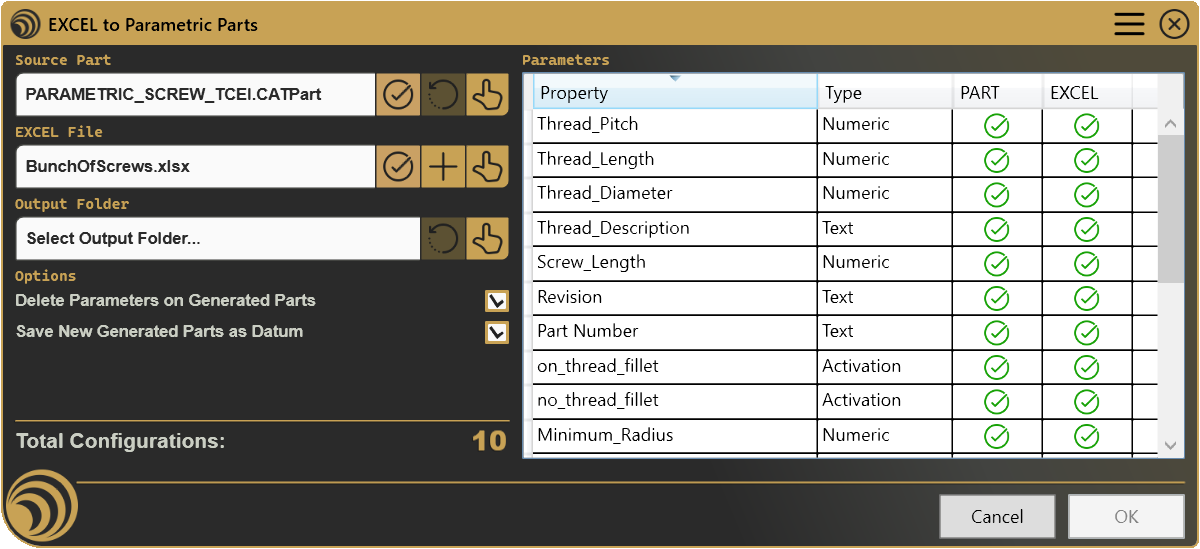
The panel is split into two halves: a left column that walks through Source Part, Excel File, Output Folder, and generation Options, and a right-hand table that lists every parameter the tool has picked up from the active Part, alongside its availability in both the Part and the Excel file.
3.1 Source Part

The Source Part field shows the CATPart currently used as the reference for generation, by default, the Part that was active in CATIA when the tool was launched. Its validity indicator turns to a warning if the selected Part exposes no user-accessible parameters at all, since there would then be nothing to drive from Excel.
The Reset button restores the Source Part to the Part that was active in CATIA at launch. It is only enabled when that original part is known and the currently selected Source Part is different from it, resetting to the part you’re already on would be a no-op, so the control stays disabled in that case. Select opens a file browser filtered to .CATPart files, letting you point the tool at any other parameter-driven Part; picking a new Source Part immediately re-reads its parameters and clears any previously loaded Excel file, since a parameter list tied to the old part no longer applies.
Why is Reset disabled?
- No original active Part was found when the tool launched
- The Source Part field already shows that original Part
3.2 EXCEL File

The EXCEL File field shows the spreadsheet currently loaded as the source of variant data. Once loaded, its validity indicator confirms whether the file’s header row matched the Source Part’s parameter structure.
The Create button generates a new Excel workbook template, pre-filled with a header row listing the Source Part’s file, part number, description, revision, main body name, and features-to-delete columns, followed by one column per detected parameter. It’s only enabled once the Source Part itself is valid, selected, and its parameter list has been read, there’s nothing to build a template from otherwise. Select opens a file browser for .xlsx, .xlsm, or .xls files; choosing one immediately validates its header row against the current Source Part and, if it matches, loads every data row into the parts list below.
Why is Create disabled?
- No Source Part is selected
- The Source Part’s validity indicator is a warning, not OK
- The Source Part’s parameters haven’t finished loading
3.3 Output Folder

The Output Folder field shows where generated CATPart files will be saved, defaulting to the folder configured in settings.ini. Reset restores the configured default and is only enabled when a default folder is actually configured and the current selection differs from it. Select opens a folder browser, with the option to create a new folder on the spot.
Why is Reset disabled?
- No default output folder is configured in
settings.ini - The Output Folder field already shows that default folder
3.4 Options
- Delete Parameters on Generated Parts, when checked (the default), removes the driving parameters and relations from each generated part after its values are applied, so the output part no longer carries the parametric formulas behind it.
- Save New Generated Parts as Datum, when checked (the default), flattens each generated part’s history into datum geometry after generation, producing a lightweight, non-parametric result.
Both options apply to every part in the batch; there’s no per-row override.
3.5 Parameters Table

Lists every parameter detected on the Source Part, its name, its detected type (Text, Numeric, Property, or Activation), and two status icons showing whether it’s currently available on the Part side and on the Excel side. A parameter missing from the loaded Excel file’s header row still appears here, marked unavailable on the Excel column, so you can see at a glance which columns need adding before generation will pick them up.
3.6 Total Configurations
Shows the number of rows successfully read from the loaded Excel file, in other words, how many CATPart files will be created when you press OK.
3.7 Cancel / OK
| Button | Action |
|---|---|
| Cancel | Closes the panel without generating any parts. |
| OK | Generates one CATPart per row in the loaded Excel file, saving each to the Output Folder. Triggered by the Enter key as well as the button. |
OK stays disabled until every input the generation step depends on is in place: a Source Part must be selected and valid, an Excel file must be selected and valid, and an Output Folder must be set. Any one of these missing means there’s no reliable way to know what to generate or where to put it.
Why is OK disabled?
- No Source Part is selected, or its validity indicator is a warning
- No Excel file is selected, or its validity indicator is a warning
- No Output Folder is selected
4. Configuration: settings.ini
File Location
<install_folder>/DRY0021/settings.iniCan also be opened directly via Open Settings in the DRYCAD Menu (see Section 2), or reset via Clear Settings.
Structure
; ---------------------------------------------------
; DRY0021 - EXCEL TO PARAMETRIC PARTS - SETTINGS FILE
; ---------------------------------------------------

; Default output folder for newly created CATPart Files
DEFAULT_OUTPUT_FOLDER="<path>"

; Part Description Source
; (1: Definition, 2: DescriptionInst, 3: DescriptionRef, 4: Name [default], 5: Nomenclature, 6: Filename, 7: Custom)
PART_DESCRIPTION_SOURCE=4

; Part Custom Description Property (if PART_DESCRIPTION_SOURCE = 7)
PART_CUSTOM_DESCRIPTION_PROPERTY=""

; Default Revision Value (empty for unapplied Revision)
PART_DEFAULT_REVISION="00"
Lines starting with ; are comments and are ignored.
Parameters
DEFAULT_OUTPUT_FOLDER
| Property | Value |
|---|---|
| Section | (none, top-level key) |
| Type | Path |
| Required | No |
| Default | (empty) |
The folder generated parts are saved to by default, and the value the Output Folder’s Reset button restores.
PART_DESCRIPTION_SOURCE
| Property | Value |
|---|---|
| Section | (none, top-level key) |
| Type | Integer (1–7) |
| Required | No |
| Default | 4 (Name) |
Chooses which source is used to fill each generated part’s description, when the Excel row’s Description column is left blank: Definition, Instance Description, Reference Description, Name, Nomenclature, Filename, or a Custom property.
; Example
PART_DESCRIPTION_SOURCE=3
PART_CUSTOM_DESCRIPTION_PROPERTY
| Property | Value |
|---|---|
| Section | (none, top-level key) |
| Type | Text |
| Required | Only if PART_DESCRIPTION_SOURCE = 7 |
| Default | (empty) |
Names the custom property read as the description source when PART_DESCRIPTION_SOURCE is set to 7 (Custom).
PART_DEFAULT_REVISION
| Property | Value |
|---|---|
| Section | (none, top-level key) |
| Type | Text |
| Required | No |
| Default | (empty) |
The revision value applied to a generated part when its Excel row leaves the Revision column blank.
; Example
PART_DEFAULT_REVISION="00"
This tool has no additional configuration file beyond settings.ini.
5. Examples
Example 1, A stock of screws in five sizes
Start with a reference CATPart for a hex bolt, with its length and diameter exposed as user parameters. Click Create to generate the Excel template, then fill in one row per size:
FileName        Part Number   Description   Revision   MainBody Name   Features To Delete   Length   Diameter
Bolt_M6x20      BOLT-M6-20    Hex Bolt       01                                              20       6
Bolt_M6x30      BOLT-M6-30    Hex Bolt       01                                              30       6
Bolt_M8x20      BOLT-M8-20    Hex Bolt       01                                              20       8
Bolt_M8x30      BOLT-M8-30    Hex Bolt       01                                              30       8
Bolt_M8x40      BOLT-M8-40    Hex Bolt       01                                              40       8
What it creates: five independent CATPart files, each with its Length and Diameter parameters set from its row and its Part Number, Description, and Revision applied as CATIA properties.
Key points:
- Leaving Revision blank falls back to
PART_DEFAULT_REVISIONfromsettings.ini - Leaving MainBody Name or Features To Delete blank simply skips those steps for that row
Example 2, Deactivating a feature per variant
Add a column named after a feature the reference Part can activate or deactivate, for example a chamfer body already inserted as an inactive shape. In the Excel row, entering a value starting with A activates that feature for that variant; starting with D deletes it; any other value, or leaving it blank, leaves it untouched.
FileName          ...   Chamfer
Bracket_Sharp     ...   D
Bracket_Chamfered ...   A
What it creates: two brackets from the same reference part, one with the chamfer feature removed, one with it activated.
Key points:
- The column name must exactly match the feature’s name in the CATIA specification tree
- Only the first letter of the value is checked, so “Activate” and “A” behave identically
6. Troubleshooting
”CATIA is not open. Please open CATIA and try again.”
The tool couldn’t find a running CATIA process at launch. Start CATIA V5, open the reference Part, and launch the tool again.
”User not found. Please login and try again.”
The DRYCAD Suite couldn’t resolve a logged-in user for this session. Log in again through the Suite and relaunch the tool.
”Error creating the workbook: …”
Excel could not create the template workbook, commonly because Excel isn’t installed, is unresponsive, or a permissions issue is blocking file creation. Check that Excel opens normally on its own, then retry Create.
”Error managing parametric part: filename”
Generation stopped partway through the batch on the named file. This is typically caused by a locked or read-only file already present at the destination, or a value in that row that CATIA rejected when applying it (for example, a numeric parameter receiving a non-numeric value). Check the Output Folder for a partially written file with that name, remove it if present, correct the offending row, and run again.
The Excel file loads but every parameter shows unavailable in the table
- Confirm the header row in the Excel file starts at row 3, with common columns (FileName, Part Number, Description, Revision, MainBody Name, Features To Delete) followed by one column per parameter
- Check that each parameter column header matches the parameter’s name in the Parameters table exactly, including case
- Make sure the sheet used is the one named
TEMPLATEif the workbook has multiple sheets, otherwise the first sheet is read
Why is OK disabled?
- No Source Part is selected, or its validity indicator shows a warning instead of OK
- No Excel file is selected, or its validity indicator shows a warning instead of OK
- No Output Folder has been selected yet
7. Version History
| Version | Date | Changes |
|---|---|---|
| 1.0.0 | 2026-07 | Initial release |
DRY0021, EXCEL to Parametric Parts | DRYCAD Solutions | v1.0.0