
DRYCAD Suite | User Documentation | v1.0.0
Table of Contents
- Overview
- Getting Started
- User Interface
- Configuration: settings.ini
- Examples
- Troubleshooting
- Version History
1. Overview
When a study is built as a single multi-body Part, the bodies inside it are convenient for comparison and iteration, but eventually each one needs to leave the study and become its own CATPart. DRY0024 selects any number of bodies from the active Part and produces a standalone CATPart for each, either with full editable history or as a clean, disconnected publication result, depending on how the source bodies were designed.
What it does:
- Lets you select one or more bodies in the active Part to export
- Creates one new CATPart per selected body, saved to a chosen output folder
- Supports two distinct export modes: With Publications and With History
- In With Publications mode, creates a Publication for each body, generates Technological Results to carry technological features across, and deactivates the publication link so the new part is never unexpectedly updated from the source
- In With History mode, copies the body’s own feature tree into the new Part, keeping it fully editable, but only works correctly when the body has no direct geometric links to other bodies
- Optionally sets the body name as the new part’s description
- Optionally transfers selected custom properties (Publications mode) or removes selected ones (History mode)
- Optionally preserves hidden top-level bodies in the new part (History mode)
- Validates the selection continuously and shows a clear OK/Warning status before you commit
Supported CAD platforms: CATIA V5
Workspace requirement: An active Part document must be open in CATIA.
2. Getting Started
Prerequisites
- CATIA V5 must be running
- You must be logged into the DRYCAD Suite
- An active Part document must be open in CATIA
Launching the Tool
DRY0024 is launched from the DRYCAD Suite CommandBar inside CATIA V5. Click the corresponding button to open the panel.
The tool checks the following conditions at startup, and will show an error and close if any fail:
- A valid user session is found, if not: “User not found. Please login and try again.”
- CATIA V5 is running and accessible, if not: “CATIA is not open. Please open CATIA and try again.”
- The active document is a Part, if not, an “Invalid Workspace” error is shown and the panel does not open
A background watchdog checks every 5 seconds whether CATIA is still running and whether the active document is still a Part. If either condition changes, the panel closes automatically.
The DRYCAD Menu
Every DRYCAD Suite tool with a user interface includes a menu in the top bar, accessed via the hamburger icon next to the window controls.

| Option | Description |
|---|---|
| Release 1.0.0 | Displays the current version of the tool. Informational only, not an action. |
| Documentation | Opens this documentation page in your default browser. |
| Open Settings | Opens settings.ini in your system’s default text editor. |
| Clear Settings | Resets settings.ini to a clean default version. Shows a confirmation warning before proceeding. |
3. User Interface
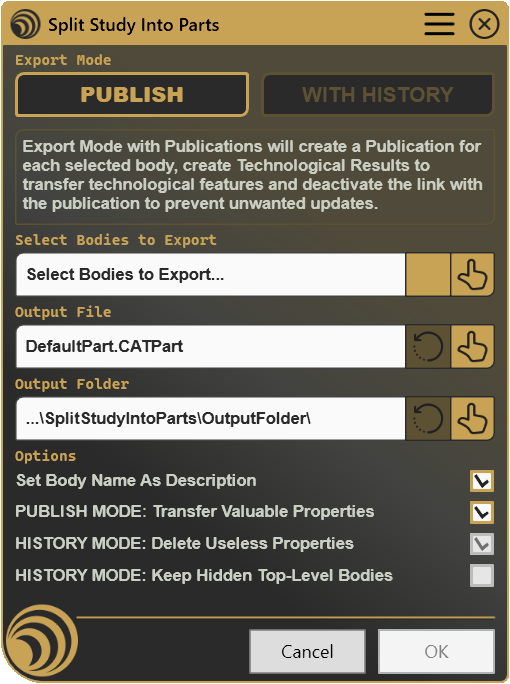
The panel is organized top to bottom: export mode selection, body selection, output file, output folder, options, and the final action buttons.
3.1 Export Mode

Two toggle buttons let you choose how each new CATPart will be built. Only one mode can be active at a time, and a description box beneath the buttons explains the currently selected mode.
| Control | Description |
|---|---|
| PUBLISH | For each selected body: creates a Publication, generates Technological Results to transfer technological features, and deactivates the publication link so the new part won’t unexpectedly update from the source. |
| WITH HISTORY | Copies the body’s own feature history into the new Part. Requires that each selected body was designed without any direct link to another body, only references to Geometrical Features outside any body are safe here. |
Switching modes changes which fields further down the panel are relevant: the Output File selector is only meaningful in Publish mode, while several Options checkboxes only apply in History mode. Switching also re-validates the current selection against the new mode’s rules, updating the validity indicator described in Section 3.2.
Note: The mode shown on open is controlled by
STARTING_EXPORT_MODEinsettings.ini, which can also be set to remember the last mode used in the session.
3.2 Select Bodies to Export

| Control | Icon | Description |
|---|---|---|
| Select Bodies |  | Prompts you to click one or more bodies in CATIA to add to the export selection |
| Validity indicator | - | Shows a green confirmation or an amber warning icon, with details available on hover |
The read-only field above the button shows how many bodies are currently selected, or a prompt to select bodies if none are chosen yet.
Every time the selection or the export mode changes, the tool re-validates the current bodies against the rules of the active mode:
- In Publish mode, at least one body must be selected; no two selected bodies (nor a selected body and any other body already involved in a Boolean operation elsewhere in the Part) may share the same name; none of the selected bodies may be empty of shapes; and each selected body must be, or successfully become, up to date.
- In History mode, at least one body must be selected, the active Part document must already be saved, and the same duplicate-name checks described above apply.
If validation fails, the amber warning icon appears, the specific issue is shown both as a message and in the icon’s tooltip, and OK is disabled until it’s resolved.
Why is the validity indicator showing a warning?
- No bodies are currently selected
- Two or more selected bodies share the same name (case-insensitive)
- A selected body shares its name with another body elsewhere in the Part that is involved in a Boolean operation
- One or more selected bodies contain no shapes
- A selected body could not be brought up to date automatically
- (History mode only) The active Part has never been saved
3.3 Output File
The Output File field is only active in Publish mode, in With History mode each new part is built directly from the selected body’s own document, so no separate starting file is needed and the field is disabled.
| Control | Icon | Description |
|---|---|---|
| Reset |  | Restores the configured default output file |
| Select | | Opens a file picker filtered to .CATPart files to choose a different starting file |
If no file is selected and the mode is Publish, each new part is created as a blank CATIA Part rather than copied from a template file.
Why is Output File, or its buttons, disabled?
- The whole field and both buttons are disabled while WITH HISTORY mode is active
- Reset is also disabled when no default output file is configured, or when the current selection already matches the default
3.4 Output Folder
| Control | Icon | Description |
|---|---|---|
| Reset | | Restores the configured default output folder |
| Select | | Opens a folder picker, with the option to create a new folder on the spot |
Unlike Output File, the Output Folder selector remains active in both export modes, every new CATPart, regardless of mode, needs somewhere to be saved.
Why is Reset Output Folder disabled?
- No default output folder is configured in
settings.ini - The currently selected folder already matches the configured default
3.5 Options

| Option | Description |
|---|---|
| Set Body Name As Description | Uses each exported body’s name as the description of its new CATPart |
| PUBLISH MODE: Transfer Valuable Properties | Copies a configured list of custom properties from the source Part onto each new part |
| HISTORY MODE: Delete Useless Properties | Removes a configured list of custom properties from each new part |
| HISTORY MODE: Keep Hidden Top-Level Bodies | Preserves top-level bodies that are hidden in CATIA, instead of deleting them along with the rest of the source structure |
Transfer Valuable Properties is only enabled in Publish mode, and only if PROPERTIES_TO_TRANSFER in settings.ini lists at least one property, with nothing configured, there’s nothing to offer to transfer. Delete Useless Properties and Keep Hidden Top-Level Bodies are the mirror case: both are only enabled in History mode, and Delete Useless Properties additionally requires at least one entry in PROPERTIES_TO_DELETE.
Why are the mode-specific options disabled?
- Transfer Valuable Properties: currently in History mode, or
PROPERTIES_TO_TRANSFERis empty insettings.ini - Delete Useless Properties: currently in Publish mode, or
PROPERTIES_TO_DELETEis empty insettings.ini - Keep Hidden Top-Level Bodies: currently in Publish mode
3.6 Cancel / OK
| Button | Action |
|---|---|
| Cancel | Closes the panel without creating any new CATPart. |
| OK | Runs the split for the selected export mode, creates and saves one CATPart per selected body in the chosen folder, and closes the panel. Also triggered by pressing Enter. |
Why is OK disabled?
- No export mode is selected
- No bodies are selected for export
- No output folder is selected
- (Publish mode only) No output file is selected
- The validity indicator is currently showing a warning rather than confirmation, see Section 3.2
4. Configuration: settings.ini
File Location
<install_folder>/DRY0024/settings.iniCan also be opened directly via Open Settings in the DRYCAD Menu (see Section 2), or reset via Clear Settings.
Structure
; ------------------------------------------------
; DRY0024 - SPLIT STUDY INTO PARTS - SETTINGS FILE
; ------------------------------------------------

; Starting Export Mode
; (0: Previous Selection, 1: With Publications [default]; 2: With History)
STARTING_EXPORT_MODE=0

; For Published Parts, Use the following Starting Parts as specified in FullName
; (Leave empty to use a standard CATIA Part...)
DEFAULT_OUTPUT_FILE="C:\Users\donze\OneDrive - DRYCAD Solutions\_DRYCAD_Solutions\__PROJECTS\SPARE\SplitStudyIntoParts\DefaultPart.CATPart"

; Default output folder for newly created CATPart Files
DEFAULT_OUTPUT_FOLDER="C:\Users\donze\OneDrive - DRYCAD Solutions\_DRYCAD_Solutions\__PROJECTS\SPARE\SplitStudyIntoParts\OutputFolder"

; Output Body Default Name (empty to leave unchanged)
OUTPUT_BODY_NAME="NEWPARTBODY"

; Part Description Source
; (1: Definition, 2: DescriptionInst, 3: DescriptionRef, 4: Name [default], 5: Nomenclature, 6: Filename, 7: Custom)
PART_DESCRIPTION_SOURCE=3

; Part Custom Description Property (if PART_DESCRIPTION_SOURCE = 7)
PART_CUSTOM_DESCRIPTION_PROPERTY=""

; Default Revision Value (empty for unapplied Revision)
PART_DEFAULT_REVISION="00"

; List of User Custom Properties to Delete from the new Part, separated by semicolon ';'
; (This applies when using the Export Mode `With History`)
PROPERTIES_TO_DELETE="Material;WorkingStatus;Symmetry"

; List of User Custom Properties to Transfer to the new Part, separated by semicolon ';'
; (This applies when using the Export Mode `With Publication`)
PROPERTIES_TO_TRANSFER="Material;Symmetry;Designer"
Lines starting with ; are comments and are ignored.
Parameters
STARTING_EXPORT_MODE
| Property | Value |
|---|---|
| Section | (root) |
| Type | Integer (0–2) |
| Required | No |
| Default | 0 |
Controls which export mode is pre-selected when the panel opens.
; 0 = Previous Selection (remembers the last mode used in the session)
; 1 = With Publications
; 2 = With History
STARTING_EXPORT_MODE=1
DEFAULT_OUTPUT_FILE
| Property | Value |
|---|---|
| Section | (root) |
| Type | File path |
| Required | No |
| Default | (empty) |
The starting CATPart file to base each new part on when using With Publications mode. If left empty, each new part is created as a blank CATIA Part instead. Not used in With History mode.
DEFAULT_OUTPUT_FILE="D:\Templates\DefaultPart.CATPart"DEFAULT_OUTPUT_FOLDER
| Property | Value |
|---|---|
| Section | (root) |
| Type | Folder path |
| Required | No |
| Default | (empty) |
The default destination folder for newly created CATPart files, in either export mode.
DEFAULT_OUTPUT_FOLDER="D:\Projects\Export"OUTPUT_BODY_NAME
| Property | Value |
|---|---|
| Section | (root) |
| Type | String |
| Required | No |
| Default | (empty) |
The name applied to the resulting body inside each new CATPart. If left empty, the body keeps the name it had in the source Part.
OUTPUT_BODY_NAME="MAIN_BODY"PART_DESCRIPTION_SOURCE
| Property | Value |
|---|---|
| Section | (root) |
| Type | Integer (1–7) |
| Required | No |
| Default | 4 (Name) |
Determines which field is used to set the new part’s description when Set Body Name As Description is enabled.
; 1 = Definition
; 2 = DescriptionInst
; 3 = DescriptionRef
; 4 = Name (default)
; 5 = Nomenclature
; 6 = Filename
; 7 = Custom (requires PART_CUSTOM_DESCRIPTION_PROPERTY)
PART_DESCRIPTION_SOURCE=3
PART_CUSTOM_DESCRIPTION_PROPERTY
| Property | Value |
|---|---|
| Section | (root) |
| Type | String |
| Required | Only if PART_DESCRIPTION_SOURCE=7 |
| Default | (empty) |
The name of the custom property to read when PART_DESCRIPTION_SOURCE is set to 7 (Custom).
PART_CUSTOM_DESCRIPTION_PROPERTY="ProjectCode"PART_DEFAULT_REVISION
| Property | Value |
|---|---|
| Section | (root) |
| Type | String |
| Required | No |
| Default | (empty) |
The revision value applied to every newly created part. Leave empty to skip setting a revision.
PART_DEFAULT_REVISION="A"PROPERTIES_TO_DELETE
| Property | Value |
|---|---|
| Section | (root) |
| Type | Semicolon-separated list of strings |
| Required | No |
| Default | (empty) |
The custom properties removed from each new part when HISTORY MODE: Delete Useless Properties is enabled. Only relevant in With History mode.
PROPERTIES_TO_DELETE="Material;WorkingStatus;Symmetry"PROPERTIES_TO_TRANSFER
| Property | Value |
|---|---|
| Section | (root) |
| Type | Semicolon-separated list of strings |
| Required | No |
| Default | (empty) |
The custom properties copied from the source Part onto each new part when PUBLISH MODE: Transfer Valuable Properties is enabled. Only relevant in With Publications mode.
PROPERTIES_TO_TRANSFER="Material;Symmetry;Designer"5. Examples
Example 1, Publishing a Finished Study for Downstream Use
A study Part has three finished bodies, each representing a design option. The team wants stable, disconnected CATParts to hand off downstream, carrying over the Material and Designer properties.
STARTING_EXPORT_MODE=1
DEFAULT_OUTPUT_FILE=""
DEFAULT_OUTPUT_FOLDER="D:\Projects\Handoff"
OUTPUT_BODY_NAME=""
PART_DESCRIPTION_SOURCE=4
PART_DEFAULT_REVISION="A"
PROPERTIES_TO_TRANSFER="Material;Designer"
What it creates: Three CATParts in D:\Projects\Handoff, each holding a disconnected result geometry from one body, with Material and Designer properties carried over and revision A applied.
Key points:
STARTING_EXPORT_MODE=1opens directly on PUBLISH mode- An empty
DEFAULT_OUTPUT_FILEmeans each part starts from a blank CATIA Part rather than a template - Leaving
OUTPUT_BODY_NAMEempty keeps each body’s original name in the new part PROPERTIES_TO_TRANSFERonly lists the two properties the downstream team actually needs
Example 2, Preserving Editable History for Continued Work
A designer wants to split a multi-body Part into fully editable parts that colleagues can keep modifying, cleaning up outdated status properties in the process.
STARTING_EXPORT_MODE=2
DEFAULT_OUTPUT_FOLDER="D:\Projects\WIP"
OUTPUT_BODY_NAME="MAIN_BODY"
PART_DESCRIPTION_SOURCE=4
PART_DEFAULT_REVISION="00"
PROPERTIES_TO_DELETE="WorkingStatus;Symmetry"
What it creates: One editable CATPart per selected body in D:\Projects\WIP, each with its body renamed to MAIN_BODY, WorkingStatus and Symmetry properties removed, and revision 00 applied.
Key points:
STARTING_EXPORT_MODE=2opens directly on WITH HISTORY mode- This mode only produces correct results for bodies with no direct links to other bodies in the source Part
OUTPUT_BODY_NAMEstandardizes the body name across every output, regardless of what it was called in the studyPROPERTIES_TO_DELETEclears properties that no longer make sense once the body is a standalone part
6. Troubleshooting
”User not found. Please login and try again.”
The tool could not identify the logged-in user at startup. Log out of the DRYCAD Suite, log back in, and relaunch.
”CATIA is not open. Please open CATIA and try again.”
The tool launched but could not find a running CATIA V5 process. Make sure CATIA is fully loaded before clicking the CommandBar button.
”Invalid Workspace”
The active document is not a Part. DRY0024 only operates on Part documents. Switch to or open a Part in CATIA, then relaunch.
Panel closes unexpectedly without any action
The background watchdog detected that CATIA has closed, or the active document is no longer a Part. This is expected behavior, the panel shuts down to avoid operating on an unsupported context. Return to a Part document and reopen the panel.
”No Bodies to Export Selected…”
No bodies have been added to the export selection yet. Click Select Bodies and pick one or more bodies in CATIA before continuing.
”There are some bodies with the same name.”
Two or more bodies in the current selection share the same name (case-insensitive). Rename each body to something unique, or click Select Bodies again to adjust the selection.
”There are some bodies in the whole part that have the same name as one of the selected body.”
A body elsewhere in the Part, one already involved in a Boolean operation, shares a name with one of your selected bodies. Rename one of them to a unique value before proceeding.
”There are some empty bodies in the selection.”
One or more selected bodies contain no shapes. Remove them from the selection using Select Bodies, or add geometry to them first.
”There are some bodies in the selection that could not be updated.”
The tool attempted to bring a selected body up to date and failed. Update the body manually in CATIA, resolve any update errors, and try the selection again.
”Current Part is not Saved.”
(With History mode only) The active Part document has never been saved. Save the document first, this mode needs a real file path to base its checks on.
OK button stays disabled
Check all of the following:
- An export mode (PUBLISH or WITH HISTORY) must be selected
- At least one body must be selected for export
- An output folder must be selected
- In PUBLISH mode, an output file must also be selected
- The validity indicator must be showing a green confirmation, not an amber warning, see Section 3.2 for the full list of validation checks
A property I expected to transfer or delete didn’t change
Properties are only transferred or deleted if they appear, spelled exactly as they exist in CATIA, in PROPERTIES_TO_TRANSFER or PROPERTIES_TO_DELETE in settings.ini, and only when the matching checkbox is both visible for the active mode and checked. A property absent from CATIA’s User Properties is silently skipped rather than causing an error.
7. Version History
| Version | Date | Changes |
|---|---|---|
| 1.0.0 | 2026-06 | Initial release |
DRY0024, Split Study Into Single Parts | DRYCAD Solutions | v1.0.0