
DRYCAD Suite | User Documentation | v1.0.0
Table of Contents
- Overview
- Getting Started
- User Interface
- Configuration: settings.ini
- Examples
- Troubleshooting
- Version History
1. Overview
Repeating a Body in CATIA usually means copy, paste special, then a separate trip through Mirror or Pattern commands, each with its own dialog, its own selection prompts, and its own naming to clean up afterward. DRY0030 collapses all three repetition strategies, plain copy, mirror, and axis-to-axis pattern, into a single panel with one consistent flow: select the Bodies, pick the mode, define its target, confirm.
What it does:
- Copies one or more Bodies, with or without a link to the source, into the current Part or any other open Part document
- Mirrors Bodies across the standard XY/YZ/ZX planes or any manually selected plane
- Repeats Bodies from one anchor axis system to any number of target axis systems, creating one copy per target
- Applies configurable prefixes and suffixes to renamed Bodies, and optional progressive numbering for patterned copies
- Combines patterning and mirroring in a single operation when both an axis-to-axis pattern and a symmetry plane are defined
- Includes standalone tools to create axis systems from selected geometry and to reverse the orientation of existing axis systems
Supported CAD platforms: CATIA V5
Workspace requirement: An active Part document must be open in CATIA.
2. Getting Started
Prerequisites
- CATIA V5 must be running
- You must be logged into the DRYCAD Suite
- An active Part document must be open in CATIA
Launching the Tool
DRY0030 is launched from the DRYCAD Suite CommandBar inside CATIA V5. Click the corresponding button to open the panel.
The tool checks the following conditions at startup, and will show an error and close if any fail:
- A valid user session is found, if not: “User not found. Please login and try again.”
- CATIA V5 is running and accessible, if not: “CATIA is not open. Please open CATIA and try again.”
- The active document is a Part, if not, an “Invalid Workspace” error is shown and the panel does not open
A background watchdog checks every 5 seconds whether CATIA is still running and whether the active document is still a Part. If either condition changes, the panel closes automatically.
The DRYCAD Menu
Every DRYCAD Suite tool with a user interface includes a menu in the top bar, accessed via the hamburger icon next to the window controls.

| Option | Description |
|---|---|
| Release 1.0.0 | Displays the current version of the tool. Informational only, not an action. |
| Documentation | Opens this documentation page in your default browser. |
| Open Settings | Opens settings.ini in your system’s default text editor. |
| Clear Settings | Resets settings.ini to a clean default version. Shows a confirmation warning before proceeding. |
3. User Interface
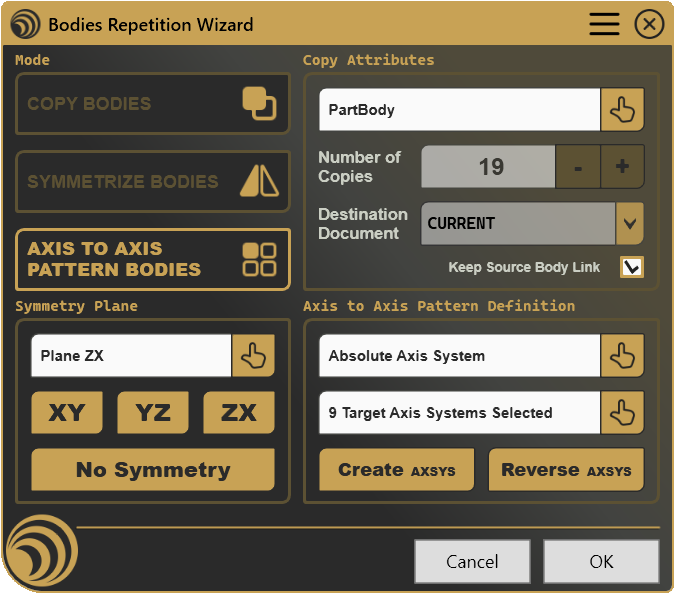
The panel is organized around a Mode column on the left and a set of context-dependent groupboxes on the right: Copy Attributes is always visible, while Symmetry Plane and Axis to Axis Pattern Definition enable or disable depending on the active mode.
3.1 Mode Selection

Three toggle buttons determine how the selected Bodies are repeated. Only one mode is active at a time.
| Control | Icon | Description |
|---|---|---|
| COPY BODIES |  | Duplicates the selected Bodies, once per copy, into the current or another open Part |
| SYMMETRIZE BODIES |  | Creates a single mirrored copy of each selected Body across a symmetry plane |
| AXIS TO AXIS PATTERN BODIES |  | Creates one copy of each selected Body per target axis system, positioned by an anchor-to-target transform |
Switching mode changes what Number of Copies represents and which of the two side groupboxes are active, Copy mode locks that number to manual entry, Symmetrize mode forces it to a single mirrored copy, and Pattern mode calculates it automatically from the number of target axis systems selected (doubled plus one if a symmetry plane is also active, since every pattern position is mirrored too).
3.2 Copy Attributes

This groupbox is active regardless of mode, it defines what gets copied, how many results are produced, and where they end up.
| Control | Icon | Description |
|---|---|---|
| Select Body/Bodies |  | Prompts you to select one or more Bodies in CATIA to repeat |
| Number of Copies | - | Shows or lets you set how many repetitions are created |
| + / − | - | Increases or decreases the number of copies by one, from 1 to 99 |
| Destination Document | - | Chooses which open Part document receives the copies |
| Keep Source Body Link | - | Determines whether copies retain a link back to the original Body |
If one or more Bodies were already selected in CATIA before the panel opened, they’re picked up automatically, the field shows the name of a single selected Body, or a count when several are selected.
Why is Number of Copies read-only? The field only accepts manual typing and the +/− buttons in Copy mode. In Symmetrize mode it’s fixed at 1, since a mirror always produces exactly one copy per source Body. In Pattern mode it’s computed from your anchor and target axis system selections, so it reflects the real number of positions rather than a number you’d have to keep in sync by hand.
Why is Destination Document disabled? The dropdown is only enabled in Copy mode, mirroring and patterning always operate within the active Part, since both rely on referencing geometry (a symmetry plane, an axis system) that only makes sense in the same Part as the source Bodies. Switching away from Copy mode automatically resets the destination back to the current document.
Why is Keep Source Body Link disabled? The checkbox is only editable when the destination is the current document. Pasting into a different Part document always creates an independent copy, CATIA doesn’t support a live link across documents in this workflow, so the option is locked to reflect that.
3.3 Symmetry Plane

This groupbox defines the mirror plane used in Symmetrize mode, and also the optional plane applied on top of a Pattern.
| Control | Icon | Description |
|---|---|---|
| Manual Plane Selection | | Prompts you to pick any planar face or plane in CATIA to use as the symmetry plane |
| XY / YZ / ZX | - | Instantly sets one of the Part’s standard origin planes as the symmetry plane |
| No Symmetry | - | Clears the current symmetry plane selection |
Why is this whole groupbox disabled? Every control here is only enabled when the active mode is Symmetrize or Pattern. In Copy mode there’s no mirroring involved, so the plane selection has nothing to act on.
Why does selecting a plane sometimes have no visible effect on Number of Copies? In Symmetrize mode the copy count stays fixed at 1 regardless of the plane chosen, a mirror always produces one result per Body. In Pattern mode, adding a symmetry plane doubles the pattern’s position count and adds one for the original, which recalculates the moment a valid plane is set.
3.4 Axis to Axis Pattern Definition

This groupbox is only meaningful in Pattern mode, it defines the anchor-to-target transform that positions every repeated Body.
| Control | Icon | Description |
|---|---|---|
| Anchor Axis System | | Prompts you to select the single axis system that represents the current position of the selected Bodies |
| Copy Target Axis System | | Prompts you to select one or more axis systems representing where copies should be placed |
| Create AXSYS | - | Opens a guided workflow to create new axis systems from selected directions and points, useful when target positions don’t have axis systems yet |
| Reverse AXSYS | - | Flips the orientation of one or more existing axis systems along a configurable direction, useful for correcting mismatched anchor/target orientations |
Why are the Anchor and Target fields disabled? Both fields, along with Create AXSYS and Reverse AXSYS, are only enabled in Pattern mode, a pattern with no anchor or targets has nothing to describe, so the fields stay inactive until that mode is active.
Why is Number of Copies stuck at a value I didn’t expect? It’s derived, not typed. It equals the number of target axis systems selected, doubled, plus one, if a symmetry plane is also set (each target position gets both the direct pattern copy and its mirror, plus the original mirrored copy). Reselecting either the anchor or the targets recalculates it immediately.
3.5 Cancel / OK
| Button | Action |
|---|---|
| Cancel | Closes the panel without making any changes to the CATIA document. |
| OK | Executes the selected mode, copying, mirroring, and/or patterning the selected Bodies as configured, and closes the panel. Also triggered by pressing Enter. |
Why is OK disabled? OK requires a valid Body selection at minimum, plus whatever the active mode additionally needs:
- In Symmetrize mode, a symmetry plane must also be selected
- In Pattern mode, both an anchor axis system and at least one target axis system must be selected
If any of the mode’s required selections is missing, OK stays disabled until it’s provided.
4. Configuration: settings.ini
File Location
<install_folder>/DRY0030/settings.iniCan also be opened directly via Open Settings in the DRYCAD Menu (see Section 2), or reset via Clear Settings.
Structure
; --------------------------------------------------
; DRY0030 - BODIES REPETITION WIZARD - SETTINGS FILE
; --------------------------------------------------

[Naming Conventions]
; Prefix for copied bodies with link (this will be applied to any copied body)
COPIED_BODIES_WITH_LINK_PREFIX="[CA]"

; Prefix for copied bodies without link (this will be applied to any copied body)
COPIED_BODIES_WITHOUT_LINK_PREFIX=

; Suffix for copied bodies with link (this will be applied to any copied body)
COPIED_BODIES_WITH_LINK_SUFFIX=

; Suffix for copied bodies without link (this will be applied to any copied body)
COPIED_BODIES_WITHOUT_LINK_SUFFIX="[CI]"

; Prefix for symmetric bodies
SYMMETRIC_BODIES_PREFIX=

; Suffix for symmetric bodies
SYMMETRIC_BODIES_SUFFIX="[SYM]"

; Prefix for patterned bodies
PATTERN_BODIES_PREFIX=

; Suffix for patterned bodies
PATTERN_BODIES_SUFFIX="[PTRN]"

; Add Progressive numbering to copied bodies (0: False [default], 1: True)
ADD_PROGRESSIVE_NUMBERING=1

[Axis Systems]
; Default Axis Systems Creation Location.
; Insert a structure of Geometrical Sets, separated by ';', e.g.: "Construction_Geometry;Axis_Systems"
; Leave empty to insert the axis system in the first available (or In Work Object) Geometrical Set
AXIS_SYSTEMS_GEOMETRICAL_SET_STRUCTURE="Construction_Geometry;Axis_Systems"

; Axis System default direction
; (0: X, 1: Y, 2: Z [default])
AXIS_SYSTEM_DEFAULT_DIRECTION=2
Lines starting with ; are comments and are ignored.
Parameters
COPIED_BODIES_WITH_LINK_PREFIX
| Property | Value |
|---|---|
| Section | [Naming Conventions] |
| Type | String |
| Required | No |
| Default | "[CA]" |
Prefix applied to Bodies copied in Copy mode when Keep Source Body Link is checked.
COPIED_BODIES_WITH_LINK_PREFIX="[CA]"COPIED_BODIES_WITHOUT_LINK_PREFIX
| Property | Value |
|---|---|
| Section | [Naming Conventions] |
| Type | String |
| Required | No |
| Default | (empty) |
Prefix applied to Bodies copied in Copy mode when Keep Source Body Link is unchecked.
COPIED_BODIES_WITHOUT_LINK_PREFIX="[COPY]"COPIED_BODIES_WITH_LINK_SUFFIX
| Property | Value |
|---|---|
| Section | [Naming Conventions] |
| Type | String |
| Required | No |
| Default | (empty) |
Suffix applied to Bodies copied in Copy mode when Keep Source Body Link is checked.
COPIED_BODIES_WITH_LINK_SUFFIX="_link"COPIED_BODIES_WITHOUT_LINK_SUFFIX
| Property | Value |
|---|---|
| Section | [Naming Conventions] |
| Type | String |
| Required | No |
| Default | "[CI]" |
Suffix applied to Bodies copied in Copy mode when Keep Source Body Link is unchecked.
COPIED_BODIES_WITHOUT_LINK_SUFFIX="[CI]"SYMMETRIC_BODIES_PREFIX
| Property | Value |
|---|---|
| Section | [Naming Conventions] |
| Type | String |
| Required | No |
| Default | (empty) |
Prefix reserved for Bodies created in Symmetrize mode.
Note: In the current release, this parameter is read from configuration but is not yet applied to mirrored Bodies at creation time, mirrored Bodies keep the source Body’s name unchanged. Configure it for forward compatibility; it will take effect in a future release.
SYMMETRIC_BODIES_PREFIX="MIR_"SYMMETRIC_BODIES_SUFFIX
| Property | Value |
|---|---|
| Section | [Naming Conventions] |
| Type | String |
| Required | No |
| Default | "[SYM]" |
Suffix reserved for Bodies created in Symmetrize mode.
Note: As with
SYMMETRIC_BODIES_PREFIX, this parameter is not yet applied to mirrored Bodies in the current release. See the note above.
SYMMETRIC_BODIES_SUFFIX="[SYM]"PATTERN_BODIES_PREFIX
| Property | Value |
|---|---|
| Section | [Naming Conventions] |
| Type | String |
| Required | No |
| Default | (empty) |
Prefix applied to Bodies created in Pattern mode.
PATTERN_BODIES_PREFIX="PTN_"PATTERN_BODIES_SUFFIX
| Property | Value |
|---|---|
| Section | [Naming Conventions] |
| Type | String |
| Required | No |
| Default | "[PTRN]" |
Suffix applied to Bodies created in Pattern mode.
PATTERN_BODIES_SUFFIX="[PTRN]"ADD_PROGRESSIVE_NUMBERING
| Property | Value |
|---|---|
| Section | [Naming Conventions] |
| Type | Boolean (0 / 1) |
| Required | No |
| Default | 0 |
When set to 1, each patterned Body receives a numeric suffix (.1, .2, and so on) in addition to the configured prefix/suffix. This only applies to Pattern mode, and only when no symmetry plane is set alongside the pattern, combining a pattern with a symmetry plane disables progressive numbering for that run.
ADD_PROGRESSIVE_NUMBERING=1AXIS_SYSTEMS_GEOMETRICAL_SET_STRUCTURE
| Property | Value |
|---|---|
| Section | [Axis Systems] |
| Type | String (semicolon-separated) |
| Required | No |
| Default | (empty) |
Defines the Geometrical Set structure where axis systems created with Create AXSYS are placed. Nested sets are separated by ;. Leave empty to use the first available Geometrical Set, or the current In Work Object.
; Creates (or reuses) Construction_Geometry > Axis_Systems and places new axis systems there
AXIS_SYSTEMS_GEOMETRICAL_SET_STRUCTURE="Construction_Geometry;Axis_Systems"
AXIS_SYSTEM_DEFAULT_DIRECTION
| Property | Value |
|---|---|
| Section | [Axis Systems] |
| Type | Integer (0–2) |
| Required | No |
| Default | 2 |
Controls which axis (X, Y, or Z) is used both when Create AXSYS builds a new axis system from a selected direction, and when Reverse AXSYS determines which axis to flip.
; 0 = X
; 1 = Y
; 2 = Z
AXIS_SYSTEM_DEFAULT_DIRECTION=2
5. Examples
Example 1, Linked Copy to Another Part
Copying a shared Body into a second open Part while keeping it live-linked to the source, so future changes propagate automatically.
Setup:
- Mode: Copy Bodies
- Body selected: a single Body in the active Part
- Number of Copies:
1 - Destination Document: the name of the second open Part
- Keep Source Body Link: unchecked (link across documents isn’t supported, see 3.2)
What it creates: A single independent Body in the destination Part, named using COPIED_BODIES_WITHOUT_LINK_PREFIX / _SUFFIX since cross-document copies are always unlinked.
Key points:
- Selecting a different destination document automatically locks Keep Source Body Link off
- Only one copy is created per OK, regardless of the Number of Copies value, when pasting to another document, increase the count and repeat, or run the tool again for more
Example 2, Mirror Across a Manually Selected Plane
Mirroring an asymmetric Body across a non-standard plane that isn’t one of the Part’s origin planes.
Setup:
- Mode: Symmetrize Bodies
- Body selected: one Body
- Symmetry Plane: manually selected face
- Keep Source Body Link: checked
What it creates: One mirrored Body, linked to the source, with [CA] prepended to its name (the link prefix, since Keep Source Body Link stayed checked in the current document).
Key points:
- Number of Copies stays fixed at
1throughout, mirroring always produces exactly one result per source Body - Manual plane selection accepts any planar face, not only construction planes
Example 3, Axis-to-Axis Pattern with Mirrored Positions
Repeating a mounting Body across four bolt positions, where two of the positions are mirror images of the other two.
Setup:
- Mode: Axis to Axis Pattern Bodies
- Body selected: one Body
- Anchor Axis System: the axis system at the Body’s current position
- Copy Target Axis System: two target axis systems selected
- Symmetry Plane:
YZ - Progressive numbering: enabled (
ADD_PROGRESSIVE_NUMBERING=1)
What it creates: Five Bodies total, the original, two patterned copies (one per target), and two mirrored copies of those pattern results across the YZ plane.
Key points:
- Number of Copies shows
5automatically: 2 targets × 2 (direct + mirrored) + 1 for the original - Because a symmetry plane is active alongside the pattern,
ADD_PROGRESSIVE_NUMBERINGhas no effect on this run, see the note underADD_PROGRESSIVE_NUMBERING - The pattern still uses
PATTERN_BODIES_PREFIX/_SUFFIXfor naming; the reserved symmetry naming parameters aren’t applied on top
6. Troubleshooting
”User not found. Please login and try again.”
The tool could not identify the logged-in user at startup. Log out of the DRYCAD Suite, log back in, and relaunch.
”CATIA is not open. Please open CATIA and try again.”
The tool launched but could not find a running CATIA V5 process. Make sure CATIA is fully loaded before clicking the CommandBar button.
”Invalid Workspace”
The active document is not a Part. DRY0030 only operates on Part documents. Switch to or open a Part in CATIA, then relaunch.
Panel closes unexpectedly without any action
The background watchdog detected that CATIA has closed, or the active document is no longer a Part. This is expected behavior, the panel shuts down to avoid operating on an unsupported context. Return to a Part document and reopen the panel.
OK button stays disabled
Check the requirements for your active mode:
- A Body or Bodies must always be selected, regardless of mode
- In Symmetrize mode, a symmetry plane must also be selected, pick a standard plane, a manual plane, or clear back to No Symmetry and choose again
- In Pattern mode, both an Anchor Axis System and at least one Copy Target Axis System must be selected
Mirrored Bodies don’t have the expected prefix or suffix
SYMMETRIC_BODIES_PREFIX and SYMMETRIC_BODIES_SUFFIX are read from settings.ini but are not yet applied to Bodies created in Symmetrize mode in this release, mirrored Bodies keep the source Body’s original name. This is expected in v1.0.0; see the SYMMETRIC_BODIES_PREFIX parameter note.
Progressive numbering isn’t appearing on patterned Bodies
Check whether a symmetry plane is also set. ADD_PROGRESSIVE_NUMBERING only applies when Pattern mode is used without an active symmetry plane, combining a pattern with mirroring disables the numeric suffix for that run.
Destination Document dropdown only shows “CURRENT”
Only one Part document is open in CATIA. Open the additional Part document you want as a destination, then reopen the tool, the list of available destinations is built when the panel launches.
Why is Keep Source Body Link always unchecked and disabled after I pick another document?
Copies pasted into a Part document other than the source are always independent, CATIA doesn’t support a live cross-document link in this workflow. The checkbox reflects this automatically and re-enables once the destination is set back to the current document.
7. Version History
| Version | Date | Changes |
|---|---|---|
| 1.0.0 | 2026-06 | Initial release |
DRY0030, Bodies Repetition Wizard | DRYCAD Solutions | v1.0.0