
DRYCAD Suite | User Documentation | v1.0.0
Table of Contents
- Overview
- Getting Started
- User Interface
- Configuration: settings.ini
- Examples
- Troubleshooting
- Version History
1. Overview
Getting a clean screenshot out of CATIA usually means manually hiding the tree, the compass, the current scale, and whatever else clutters the view, then remembering to turn it all back on afterward. DRY0034 collapses that ritual into a single toggle: switch to PICTURE, the display adopts a dedicated presentation setup, take your shot, then switch back to DEFAULT and your working view returns exactly as it was.
What it does:
- Switches the active viewer between a Picture display configuration and your Default (normal) working configuration
- Independently controls background color, geometry visibility, specifications tree visibility, compass visibility, current scale visibility, selection highlight, and 3D projection mode (Parallel / Perspective) for the Picture configuration
- Captures the active viewer to a file in BMP, CGM, EMF, JPEG, PDF, SVG, TIFF, or grey-scale TIFF format
- Supports a dated sub-folder, incremental file numbering, and automatically opening the picture after it’s taken
- Restores the exact screen configuration that was active before the tool was opened, when the panel is closed
Supported CAD platforms: CATIA V5
Workspace requirement: An active Part, Product, Drawing, or Sketch document must be open in CATIA. Compass, Current Scale, and 3D View Mode controls have no effect in a Drawing document and are disabled there, see Section 3.1.
2. Getting Started
Prerequisites
- CATIA V5 must be running
- You must be logged into the DRYCAD Suite
- An active Part, Product, Drawing, or Sketch document must be open in CATIA
Launching the Tool
DRY0034 is launched from the DRYCAD Suite CommandBar inside CATIA V5. Click the corresponding button to open the panel.
The tool checks the following conditions at startup, and will show an error and close if any fail:
- A valid user session is found, if not: “User not found. Please login and try again.”
- CATIA V5 is running and accessible, if not: “CATIA is not open. Please open CATIA and try again.”
- The active document is a Part, Product, Drawing, or Sketch, if not, an “Invalid Workspace” error is shown and the panel does not open
A background watchdog checks every 5 seconds whether CATIA is still running and whether the active document is still a supported workspace type. If either condition changes, the panel closes automatically.
When the panel first opens, it immediately switches the display into Picture mode using your current settings, you’re already in the presentation view, ready to take a shot.
The DRYCAD Menu
Every DRYCAD Suite tool with a user interface includes a menu in the top bar, accessed via the hamburger icon next to the window controls.

| Option | Description |
|---|---|
| Release 1.0.0 | Displays the current version of the tool. Informational only, not an action. |
| Documentation | Opens this documentation page in your default browser. |
| Open Settings | Opens settings.ini in your system’s default text editor. |
| Clear Settings | Resets settings.ini to a clean default version. Shows a confirmation warning before proceeding. |
3. User Interface
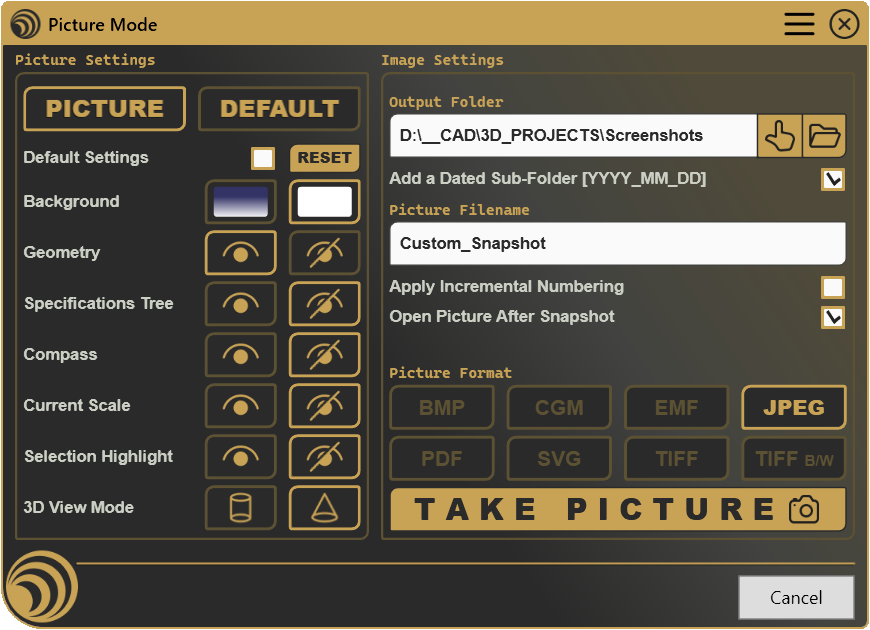
The panel is organized in two columns: Picture Settings on the left, covering the display configuration itself, and Image Settings on the right, covering how and where the captured picture is saved.
3.1 Picture Settings

At the top, PICTURE and DEFAULT toggle buttons switch the active display configuration. PICTURE applies the settings configured in this panel; DEFAULT restores the working display exactly as it was when the tool was launched.
Beneath the toggle, the Default Settings checkbox controls whether the individual display controls below it are editable:
- When checked (the default), the tool applies the configuration stored in
settings.iniunder the[Reset Graphical Properties]section, and the individual Background, Geometry, Specifications Tree, Compass, Current Scale, Selection Highlight, and 3D View Mode controls are disabled, you’re using the standard picture setup as-is. - When unchecked, each control becomes editable, letting you override the picture display on the fly for this session only, without touching
settings.ini.
The RESET button forces every display property back to the values configured under [Reset Graphical Properties] in settings.ini, regardless of the current state of Default Settings, and re-captures the current screen as the new baseline to restore on Cancel.
Why are the individual controls (Background, Geometry, Tree, Compass, Scale, Selection Highlight) disabled?
- Default Settings is checked, uncheck it to edit any of them individually.
Why are Compass, Current Scale, and 3D View Mode specifically disabled even with Default Settings unchecked?
- The active document is a Drawing. These three controls have no meaning in a 2D Drawing view and are locked regardless of the Default Settings state.
Background
Two swatches let you pick between your Default (normal) viewer background and the Picture background, each shown with its actual configured color as a live preview. Selecting either one applies it to the viewer immediately.
Geometry / Specifications Tree / Compass / Selection Highlight
Each of these is a pair of buttons, show or hide, that toggles the corresponding element in the viewer immediately when clicked. Compass follows the same Drawing restriction described above.
Current Scale / 3D View Mode
Current Scale follows the same show/hide pattern. 3D View Mode instead offers Parallel or Perspective projection for the active 3D viewer; both are disabled in a Drawing, where projection mode doesn’t apply.
3.2 Image Settings

Output Folder
Shows the currently configured destination folder, truncated if the full path is long. The folder-select button opens a standard folder browser; the adjacent open-folder button opens the destination directly in your file explorer, creating it first if it doesn’t yet exist.
Add a Dated Sub-Folder, when checked, pictures are saved inside a subfolder of the Output Folder named with today’s date (YYYY_MM_DD), created automatically if it doesn’t already exist.
Picture Filename
The base name used for the captured file, editable freely. Apply Incremental Numbering, when checked, appends the first available numeric suffix (_1, _2, …) if a file with the same name already exists in the destination folder, rather than overwriting it.
Open Picture After Snapshot, when checked, the captured file is opened automatically in its associated default application once the snapshot completes successfully.
Picture Format
Eight toggle buttons, BMP, CGM, EMF, JPEG, PDF, SVG, TIFF, and TIFF B/W, select the export format for the next capture. Only one can be active at a time, and the last format used is remembered across sessions.
3.3 Take Picture / Cancel
| Button | Action |
|---|---|
| T A K E P I C T U R E | Captures the active viewer to a file, using the current Output Folder, Picture Filename, and Picture Format. |
| Cancel | Restores the screen configuration captured when the tool was launched, and closes the panel without saving further changes. |
TAKE PICTURE is disabled if: the Output Folder is empty, the Picture Filename is empty, or no Picture Format has been selected. In practice the format is always pre-selected from the last session, so this last condition is rarely the cause, an empty Output Folder or Filename is the far more common reason.
Why is TAKE PICTURE disabled?
- The Output Folder field is empty, select a destination folder first.
- The Picture Filename field is empty, enter a base name for the captured file.
- No Picture Format is currently selected, pick one of the eight format buttons.
4. Configuration: settings.ini
File Location
<install_folder>/DRY0034/settings.iniCan also be opened directly via Open Settings in the DRYCAD Menu (see Section 2), or reset via Clear Settings.
Structure
; --------------------------------------
; DRY0034 - PICTURE MODE - SETTINGS FILE
; --------------------------------------

[Picture Mode Graphical Properties]
BACKGROUND_COLOR="255,255,255"
GRADIENT_BACKGROUND=0
SHOW_GEOMETRY=1
SHOW_SPECIFICATIONS_TREE=0
SHOW_COMPASS=0
SHOW_CURRENT_SCALE=0
SHOW_SELECTION_HIGHLIGHT=0
VIEW_MODE=2

[Reset Graphical Properties]
DEFAULT_BACKGROUND_COLOR="51,51,102"
DEFAULT_DRAWING_BACKGROUND_COLOR="255,255,255"
DEFAULT_GRADIENT_BACKGROUND=1
DEFAULT_SHOW_GEOMETRY=1
DEFAULT_SHOW_SPECIFICATIONS_TREE=1
DEFAULT_SHOW_COMPASS=1
DEFAULT_SHOW_CURRENT_SCALE=1
DEFAULT_SHOW_SELECTION_HIGHLIGHT=1
DEFAULT_VIEW_MODE=1

[Output File Management]
OUTPUT_FOLDER=
DEFAULT_FILE_NAME="Custom_Snapshot"
PICTURE_FORMAT=0
OPEN_PICTURE_ON_TAKE=1
Lines starting with ; are comments and are ignored.
Parameters
BACKGROUND_COLOR
| Property | Value |
|---|---|
| Section | [Picture Mode Graphical Properties] |
| Type | String, RGB or HEX |
| Required | No |
| Default | "#FFFFFF" |
The background color applied to the viewer when in Picture mode.
; Accepted formats
BACKGROUND_COLOR="255,255,255"  ; RGB
BACKGROUND_COLOR="#FFFFFF"      ; HEX
GRADIENT_BACKGROUND
| Property | Value |
|---|---|
| Section | [Picture Mode Graphical Properties] |
| Type | Boolean (0 / 1) |
| Required | No |
| Default | 0 |
Whether the Picture mode background is rendered as a gradient rather than a flat color.
GRADIENT_BACKGROUND=1SHOW_GEOMETRY
| Property | Value |
|---|---|
| Section | [Picture Mode Graphical Properties] |
| Type | Boolean (0 / 1) |
| Required | No |
| Default | 1 |
Whether geometry is visible in the viewer while in Picture mode.
SHOW_GEOMETRY=0SHOW_SPECIFICATIONS_TREE
| Property | Value |
|---|---|
| Section | [Picture Mode Graphical Properties] |
| Type | Boolean (0 / 1) |
| Required | No |
| Default | 0 |
Whether the specifications tree is visible while in Picture mode.
SHOW_SPECIFICATIONS_TREE=1SHOW_COMPASS
| Property | Value |
|---|---|
| Section | [Picture Mode Graphical Properties] |
| Type | Boolean (0 / 1) |
| Required | No |
| Default | 0 |
Whether the compass is visible while in Picture mode. Has no effect in a Drawing document.
SHOW_COMPASS=1SHOW_CURRENT_SCALE
| Property | Value |
|---|---|
| Section | [Picture Mode Graphical Properties] |
| Type | Boolean (0 / 1) |
| Required | No |
| Default | 0 |
Whether the current scale indicator is visible while in Picture mode. Has no effect in a Drawing document.
SHOW_CURRENT_SCALE=1SHOW_SELECTION_HIGHLIGHT
| Property | Value |
|---|---|
| Section | [Picture Mode Graphical Properties] |
| Type | Boolean (0 / 1) |
| Required | No |
| Default | 0 |
Whether pre-selection highlight is active while in Picture mode.
SHOW_SELECTION_HIGHLIGHT=1VIEW_MODE
| Property | Value |
|---|---|
| Section | [Picture Mode Graphical Properties] |
| Type | Integer (1–2) |
| Required | No |
| Default | 1 |
The 3D projection mode used in Picture mode. Has no effect in a Drawing document.
; 1 = Parallel
; 2 = Perspective
VIEW_MODE=2
DEFAULT_BACKGROUND_COLOR
| Property | Value |
|---|---|
| Section | [Reset Graphical Properties] |
| Type | String, RGB or HEX |
| Required | No |
| Default | "#333366" |
The background color to restore for Part, Product, and Sketch documents when switching back to Default mode, when RESET is used, or when the panel is closed. Not used for Drawings, see DEFAULT_DRAWING_BACKGROUND_COLOR.
DEFAULT_BACKGROUND_COLOR="51,51,102"DEFAULT_DRAWING_BACKGROUND_COLOR
| Property | Value |
|---|---|
| Section | [Reset Graphical Properties] |
| Type | String, RGB or HEX |
| Required | No |
| Default | "#FFFFFF" |
The background color to restore specifically for Drawing documents.
DEFAULT_DRAWING_BACKGROUND_COLOR="255,255,255"DEFAULT_GRADIENT_BACKGROUND
| Property | Value |
|---|---|
| Section | [Reset Graphical Properties] |
| Type | Boolean (0 / 1) |
| Required | No |
| Default | 0 |
Whether the restored Default background uses a gradient.
DEFAULT_GRADIENT_BACKGROUND=1DEFAULT_SHOW_GEOMETRY
| Property | Value |
|---|---|
| Section | [Reset Graphical Properties] |
| Type | Boolean (0 / 1) |
| Required | No |
| Default | 1 |
Whether geometry is visible when restoring the Default view.
DEFAULT_SHOW_GEOMETRY=1DEFAULT_SHOW_SPECIFICATIONS_TREE
| Property | Value |
|---|---|
| Section | [Reset Graphical Properties] |
| Type | Boolean (0 / 1) |
| Required | No |
| Default | 1 |
Whether the specifications tree is visible when restoring the Default view.
DEFAULT_SHOW_SPECIFICATIONS_TREE=1DEFAULT_SHOW_COMPASS
| Property | Value |
|---|---|
| Section | [Reset Graphical Properties] |
| Type | Boolean (0 / 1) |
| Required | No |
| Default | 1 |
Whether the compass is visible when restoring the Default view.
DEFAULT_SHOW_COMPASS=1DEFAULT_SHOW_CURRENT_SCALE
| Property | Value |
|---|---|
| Section | [Reset Graphical Properties] |
| Type | Boolean (0 / 1) |
| Required | No |
| Default | 1 |
Whether the current scale indicator is visible when restoring the Default view.
DEFAULT_SHOW_CURRENT_SCALE=1DEFAULT_SHOW_SELECTION_HIGHLIGHT
| Property | Value |
|---|---|
| Section | [Reset Graphical Properties] |
| Type | Boolean (0 / 1) |
| Required | No |
| Default | 1 |
Whether pre-selection highlight is active when restoring the Default view.
DEFAULT_SHOW_SELECTION_HIGHLIGHT=1DEFAULT_VIEW_MODE
| Property | Value |
|---|---|
| Section | [Reset Graphical Properties] |
| Type | Integer (1–2) |
| Required | No |
| Default | 1 |
The 3D projection mode to restore when switching back to Default mode.
; 1 = Parallel
; 2 = Perspective
DEFAULT_VIEW_MODE=1
OUTPUT_FOLDER
| Property | Value |
|---|---|
| Section | [Output File Management] |
| Type | Folder path |
| Required | No |
| Default | (empty) |
The default destination folder for captured pictures. Can be left empty and set from within the panel instead.
OUTPUT_FOLDER=C:\DRYCAD\ScreenshotsDEFAULT_FILE_NAME
| Property | Value |
|---|---|
| Section | [Output File Management] |
| Type | String |
| Required | No |
| Default | "DRY_Screenshot" |
The base name pre-filled in the Picture Filename field when the panel opens.
DEFAULT_FILE_NAME="Custom_Snapshot"PICTURE_FORMAT
| Property | Value |
|---|---|
| Section | [Output File Management] |
| Type | Integer (0–8) |
| Required | No |
| Default | 4 (JPEG) |
The picture format pre-selected when the panel opens.
; 0 = Previous selection (remembers the last format used in the session)
; 1 = Bitmap (BMP)
; 2 = Computer Graphics Metafile (CGM)
; 3 = Enhanced Metafile (EMF)
; 4 = Joint Photographic Experts Group (JPEG)
; 5 = Portable Document Format (PDF)
; 6 = Scalable Vector Graphics (SVG)
; 7 = Tagged Image File Format (TIFF)
; 8 = Grey-Scale Tagged Image File Format (TIFF-GREY)
PICTURE_FORMAT=4
Note: The
Settings.inishipped by default setsPICTURE_FORMAT=0(Previous Selection), not4(JPEG), meaning the tool remembers the last format used across sessions out of the box, rather than always resetting to JPEG. JPEG only applies as the fallback if no format has ever been selected yet.
OPEN_PICTURE_ON_TAKE
| Property | Value |
|---|---|
| Section | [Output File Management] |
| Type | Boolean (0 / 1) |
| Required | No |
| Default | 0 |
Whether the captured picture is automatically opened in its default associated application immediately after the snapshot.
OPEN_PICTURE_ON_TAKE=15. Examples
Example 1, Clean White Background for Client Reports
A designer who needs consistent, presentation-ready screenshots with no clutter, saved as JPEG into a dated folder.
[Picture Mode Graphical Properties]
BACKGROUND_COLOR="255,255,255"
GRADIENT_BACKGROUND=0
SHOW_GEOMETRY=1
SHOW_SPECIFICATIONS_TREE=0
SHOW_COMPASS=0
SHOW_CURRENT_SCALE=0
SHOW_SELECTION_HIGHLIGHT=0
VIEW_MODE=2

[Reset Graphical Properties]
DEFAULT_BACKGROUND_COLOR="51,51,102"
DEFAULT_DRAWING_BACKGROUND_COLOR="255,255,255"
DEFAULT_GRADIENT_BACKGROUND=1
DEFAULT_SHOW_GEOMETRY=1
DEFAULT_SHOW_SPECIFICATIONS_TREE=1
DEFAULT_SHOW_COMPASS=1
DEFAULT_SHOW_CURRENT_SCALE=1
DEFAULT_SHOW_SELECTION_HIGHLIGHT=1
DEFAULT_VIEW_MODE=1

[Output File Management]
OUTPUT_FOLDER=C:\DRYCAD\ClientReports
DEFAULT_FILE_NAME="Report_Shot"
PICTURE_FORMAT=4
OPEN_PICTURE_ON_TAKE=0
What it creates: Every time Picture mode is used, the display switches to a plain white background with only geometry visible, no tree, compass, scale, or selection highlight, in Perspective projection. Captures are saved as JPEG under C:\DRYCAD\ClientReports.
Key points:
SHOW_SPECIFICATIONS_TREE=0,SHOW_COMPASS=0,SHOW_CURRENT_SCALE=0, andSHOW_SELECTION_HIGHLIGHT=0strip away every element that would clutter a client-facing shotVIEW_MODE=2(Perspective) gives a more natural, presentation-style look than the flat Parallel projection- A fixed
OUTPUT_FOLDERmeans the destination is always ready without a manual folder pick
Example 2, Internal Documentation with Tree Visible
A technical writer who wants the specifications tree visible in every screenshot used for internal documentation, with incremental numbering so nothing is overwritten.
[Picture Mode Graphical Properties]
BACKGROUND_COLOR="240,240,240"
GRADIENT_BACKGROUND=0
SHOW_GEOMETRY=1
SHOW_SPECIFICATIONS_TREE=1
SHOW_COMPASS=0
SHOW_CURRENT_SCALE=0
SHOW_SELECTION_HIGHLIGHT=0
VIEW_MODE=1

[Reset Graphical Properties]
DEFAULT_BACKGROUND_COLOR="51,51,102"
DEFAULT_DRAWING_BACKGROUND_COLOR="255,255,255"
DEFAULT_GRADIENT_BACKGROUND=1
DEFAULT_SHOW_GEOMETRY=1
DEFAULT_SHOW_SPECIFICATIONS_TREE=1
DEFAULT_SHOW_COMPASS=1
DEFAULT_SHOW_CURRENT_SCALE=1
DEFAULT_SHOW_SELECTION_HIGHLIGHT=1
DEFAULT_VIEW_MODE=1

[Output File Management]
OUTPUT_FOLDER=C:\DRYCAD\DocScreenshots
DEFAULT_FILE_NAME="Doc_Figure"
PICTURE_FORMAT=4
OPEN_PICTURE_ON_TAKE=0
What it creates: A light grey background with the specifications tree visible alongside the geometry, in Parallel projection, saved as sequential Doc_Figure_1.jpg, Doc_Figure_2.jpg, and so on (with Apply Incremental Numbering checked in the panel).
Key points:
SHOW_SPECIFICATIONS_TREE=1deliberately keeps the tree visible, useful when documentation needs to show structure alongside geometryVIEW_MODE=1(Parallel) avoids perspective distortion, better suited to technical figures than to presentation shotsBACKGROUND_COLOR="240,240,240"gives a neutral light grey that reproduces well in printed documentation
6. Troubleshooting
”User not found. Please login and try again.”
The tool could not identify the logged-in user at startup. Log out of the DRYCAD Suite, log back in, and relaunch.
”CATIA is not open. Please open CATIA and try again.”
The tool launched but could not find a running CATIA V5 process. Make sure CATIA is fully loaded before clicking the CommandBar button.
”Invalid Workspace”
The active document is not a Part, Product, Drawing, or Sketch. Switch to or open a supported document type in CATIA, then relaunch.
Panel closes unexpectedly without any action
The background watchdog detected that CATIA has closed, or the active document is no longer a supported workspace type. This is expected behavior, the panel shuts down to avoid operating on an unsupported context. Return to a supported document and reopen the panel.
The display doesn’t change when I click a control
Check whether Default Settings is checked in the Picture Settings section, if so, the individual controls (Background, Geometry, Tree, Compass, Scale, Selection Highlight) are intentionally disabled, and the tool is applying the fixed configuration from settings.ini instead. Uncheck Default Settings to adjust them for this session.
Compass, Current Scale, or 3D View Mode won’t respond
These three controls have no effect in a Drawing document and are disabled whenever the active document is a Drawing, this is expected, not a malfunction. Switch to a Part, Product, or Sketch document to use them.
TAKE PICTURE button stays disabled
Check all of the following:
- The Output Folder field must not be empty, select a destination folder
- The Picture Filename field must not be empty, enter a base name
- A Picture Format must be selected, one of the eight format buttons must be active
My original screen setup didn’t come back after closing the tool
This should happen automatically on Cancel, the tool restores the exact screen configuration captured when it was launched. If the display still looks different afterward, use RESET before closing next time to reset to the configured [Reset Graphical Properties] values, or manually restore the settings you need (background, tree, compass, scale, selection highlight, view mode) through standard CATIA display commands.
7. Version History
| Version | Date | Changes |
|---|---|---|
| 1.0.0 | 2026-06 | Initial release |
DRY0034, Picture Mode | DRYCAD Solutions | v1.0.0