
DRYCAD Suite | User Documentation | v1.0.0
Table of Contents
1. Overview
Referencing an external plane inside a sketch normally takes two CATIA commands run in sequence: Intersect 3D Elements, then Convert to Construction Element, easy to run, easy to forget the second half of. DRY0041 runs both for you. Pick one or more planes from a filtered, always-current list, click OK, and the tool drives the native intersection command and the construction conversion automatically, leaving a clean reference behind.
What it does:
- Lists every planar Geometrical Set and origin plane available in the active Part, grouped by source
- Filters the plane list so only planes relevant to your current view or selection are shown
- Carries over any compatible planes already selected in CATIA when the tool is launched
- Drives CATIA’s native Intersect 3D Elements command against your selected planes
- Converts the resulting sketch element(s) to construction geometry automatically, with no separate step
Supported CAD platforms: CATIA V5
Workspace requirement: An active Sketch must be open and being edited in CATIA.
2. Getting Started
Prerequisites
- CATIA V5 must be running
- You must be logged into the DRYCAD Suite
- An active Sketch must be open and being edited in CATIA
Launching the Tool
DRY0041 is launched from the DRYCAD Suite CommandBar inside CATIA V5. Click the corresponding button to open the panel.
The tool checks the following conditions at startup, and will show an error and close if any fail:
- A valid user session is found, if not: “User not found. Please login and try again.”
- CATIA V5 is running and accessible, if not: “CATIA is not open. Please open CATIA and try again.”
- The active workspace is a Sketch being edited, if not, an “Invalid Workspace” error is shown and the panel does not open
A background watchdog checks every 5 seconds whether CATIA is still running and whether the active workspace is still a Sketch. If either condition changes, the panel closes automatically without a prompt.
The DRYCAD Menu
Every DRYCAD Suite tool with a user interface includes a menu in the top bar, accessed via the hamburger icon next to the window controls.

| Option | Description |
|---|---|
| Release 1.0.0 | Displays the current version of the tool. Informational only, not an action. |
| Documentation | Opens this documentation page in your default browser. |
| Open Settings | Opens settings.ini in your system’s default text editor. |
| Clear Settings | Resets settings.ini to a clean default version. Shows a confirmation warning before proceeding. |
Note: DRY0041 has no user-configurable parameters in
settings.ini, the file exists (for consistency with the rest of the Suite) but currently holds no keys. Open Settings and Clear Settings remain available from this menu but have nothing to affect.
3. User Interface
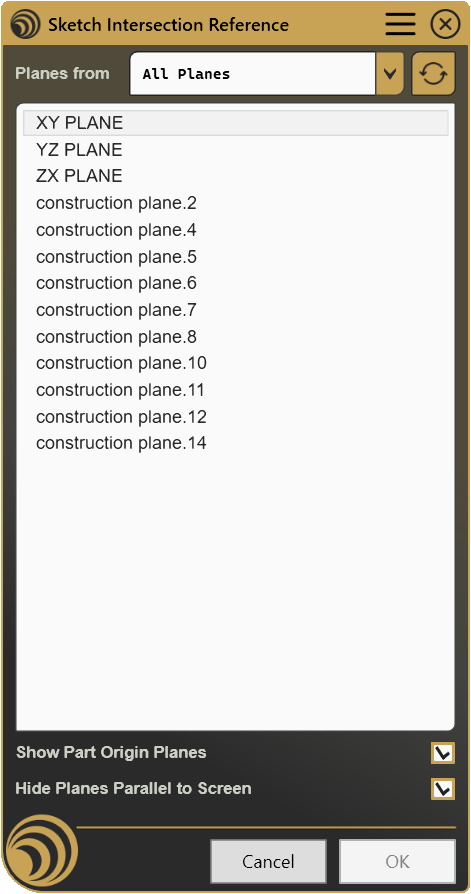
The panel is organized in three stacked areas: the plane source selector and refresh button at the top, the plane list in the middle, and two display-filter checkboxes below it, followed by Cancel / OK.
3.1 Planes From, Source Selector

The Planes from dropdown lets you scope the list below to a single source or to every available plane at once.
| Control | Icon | Description |
|---|---|---|
| Planes from dropdown | - | Choose All Planes, or a specific Geometrical Set containing planes |
| Refresh |  | Re-evaluates the plane list against the current CATIA view and selection |
The dropdown is populated from every Geometrical Set in the active Part that contains at least one plane, plus the part’s own origin planes when Show Part Origin Planes is checked. Selecting a different source clears the current plane selection and reloads the list beneath it, the tool always starts a new source from a clean slate rather than trying to carry a selection across an unrelated set of planes.
Refresh has no enablement condition, it is always available, since re-checking the current view direction is a safe, non-destructive action at any time. Use it after rotating or zooming the CATIA view if Hide Planes Parallel to Screen is checked, since that filter is evaluated against the view direction at the moment you last opened the source, changed a filter, or clicked Refresh, not continuously.
3.2 Plane List

The list shows every plane currently in scope, based on the selected source and the two filter checkboxes below. Selection is extended, hold Ctrl or Shift to select more than one plane. Double-clicking any plane in the list immediately triggers OK, the same as clicking the button.
If one or more compatible planes were already selected in CATIA when the tool was launched, they are pre-selected in this list automatically, so you don’t need to re-pick geometry you’d already highlighted before opening the panel.
3.3 Display Options

| Control | Description |
|---|---|
| Show Part Origin Planes | Includes the Part’s XY, YZ, and ZX planes in the list, in addition to any Geometrical Set planes. Checked by default. |
| Hide Planes Parallel to Screen | Removes planes whose orientation is parallel to your current view direction from the list. Checked by default. |
Both checkboxes trigger an immediate refresh of the plane list when toggled, and both are remembered between sessions per user, they are not part of settings.ini and are not shared across the team. Hide Planes Parallel to Screen compares each candidate plane’s orientation against the CATIA viewer’s current sight direction; a plane that lies flat against your current viewpoint is filtered out of the list until you rotate the view or refresh again.
3.4 Cancel / OK
| Button | Action |
|---|---|
| Cancel | Closes the panel without making any changes to the CATIA document. |
| OK | Runs the intersection against every selected plane, then converts the result to a construction element, and closes the panel. Also triggered by pressing Enter or double-clicking a plane in the list. |
OK is disabled whenever no plane is selected in the list, the command has nothing to intersect against otherwise, so the button stays inactive until at least one plane is checked off.
Why is OK disabled?
- No plane is currently selected in the list, select one or more planes first
4. Examples
Example 1, Single Reference to an Origin Plane
You’re sketching a profile and need a quick reference to the Part’s YZ plane.
- Launch DRY0041 from the CommandBar while editing your sketch.
- Leave Planes from on All Planes and make sure Show Part Origin Planes is checked.
- Select YZ PLANE in the list.
- Click OK.
What it creates: A single construction-element reference line where the YZ plane intersects the sketch plane, ready to use for dimensioning or further construction geometry.
Key points:
- Origin planes only appear when Show Part Origin Planes is checked
- A single plane selection is enough, OK enables as soon as one item is checked
Example 2, Multi-Plane Reference from a Geometrical Set
You’ve already selected three planes inside a specific Geometrical Set in CATIA, and want references to all of them at once.
- With the three planes selected in CATIA, launch DRY0041.
- The tool detects the pre-existing selection and highlights the matching planes automatically in the list.
- Confirm the selection, adjusting with Ctrl-click if needed.
- Click OK.
What it creates: Construction-element references for all three planes in a single pass.
Key points:
- Planes selected in CATIA before launch carry over into the panel automatically, saving a re-selection step
- Extended selection means any number of planes can be processed in one OK
5. Troubleshooting
”User not found. Please login and try again.”
The tool could not identify the logged-in user at startup. Log out of the DRYCAD Suite, log back in, and relaunch.
”CATIA is not open. Please open CATIA and try again.”
The tool launched but could not find a running CATIA V5 process. Make sure CATIA is fully loaded before clicking the CommandBar button.
”Invalid Workspace”
DRY0041 only operates while editing a Sketch. If the active document isn’t in Sketch edit mode, the panel shows this error and does not open. Enter Sketch edit mode in CATIA, then relaunch.
Panel closes unexpectedly without any action
The background watchdog detected that CATIA has closed, or that you exited Sketch edit mode (for example, by closing the sketch or switching to another workbench). This is expected behavior, the panel shuts down to avoid operating outside a supported context. Return to editing a Sketch and reopen the panel.
OK button stays disabled
Check that at least one plane is selected (highlighted) in the list. If the list itself appears empty:
- Confirm Planes from is set to a source that actually contains planes, an empty Geometrical Set won’t populate the list
- If you expect origin planes and don’t see them, check that Show Part Origin Planes is enabled
- If a plane you expect is missing, try unchecking Hide Planes Parallel to Screen, the plane may currently lie flat against your view
- Click Refresh after rotating the view, since the parallel-to-screen filter is not re-evaluated continuously
A plane I expect to see is missing from the list
Beyond the checks above, remember the list only ever shows planar elements, non-planar surfaces and other geometry types are filtered out entirely and will never appear here, regardless of the source or filter settings.
6. Version History
| Version | Date | Changes |
|---|---|---|
| 1.0.0 | 2026-06 | Initial release |
DRY0041, Sketch Intersection Reference | DRYCAD Solutions | v1.0.0