
DRYCAD Suite | User Documentation | v1.0.0
Table of Contents
- Overview
- Getting Started
- User Interface
- Configuration: settings.ini
- Examples
- Troubleshooting
- Version History
1. Overview
Copying a part number, a description, or a file path out of CATIA usually means opening a properties dialog, selecting text by hand, and hoping you got the right field. DRY0046 skips all of that: it reads every relevant piece of metadata from the active document, or from whatever you’ve selected, and turns each one into a single click that lands the value straight on your clipboard.
What it does:
- Reads Part Number, Name, File Name, Definition, Instance Description, Reference Description, Nomenclature, and User Description directly from the active document
- Extracts any custom parameter you’ve configured, labeled with your own button names
- Aggregates the same properties across a multi-object selection, joining repeated values automatically
- Copies the plain names of non-Product objects in a selection when no structured properties apply
- Lets you combine multiple values into a single clipboard entry in one OK click
Supported CAD platforms: CATIA V5
Workspace requirement: An active Part, Product, Drawing, or Sketch document must be open in CATIA.
2. Getting Started
Prerequisites
- CATIA V5 must be running
- You must be logged into the DRYCAD Suite
- An active Part, Product, Drawing, or Sketch document must be open in CATIA
Launching the Tool
DRY0046 is launched from the DRYCAD Suite CommandBar inside CATIA V5. Click the corresponding button to open the panel.
The tool checks the following conditions at startup, and will show an error and close if any fail:
- A valid user session is found, if not: “User not found. Please login and try again.”
- CATIA V5 is running and accessible, if not: “CATIA is not open. Please open CATIA and try again.”
- The active document is a Part, Product, Drawing, or Sketch, if not, an “Invalid Workspace” error is shown and the panel does not open
A background watchdog checks every 5 seconds whether CATIA is still running and whether the active document remains a supported workspace. If either condition changes, the panel closes automatically.
The DRYCAD Menu
Every DRYCAD Suite tool with a user interface includes a menu in the top bar, accessed via the hamburger icon next to the window controls.

| Option | Description |
|---|---|
| Release 1.0.0 | Displays the current version of the tool. Informational only, not an action. |
| Documentation | Opens this documentation page in your default browser. |
| Open Settings | Opens settings.ini in your system’s default text editor. |
| Clear Settings | Resets settings.ini to a clean default version. Shows a confirmation warning before proceeding. |
3. User Interface
The panel is organized in three vertical zones: the Applies To selector at the top, a dynamically-sized list of copy buttons in the middle, and the Cancel / OK controls at the bottom. The list of available buttons, and the panel’s height, changes automatically depending on what’s available to copy.
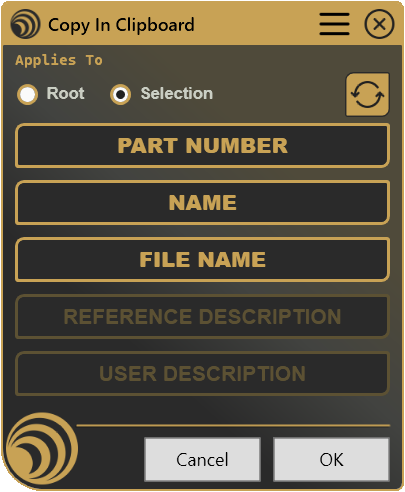
3.1 Applies To Selector

Two radio buttons determine which properties are read:
| Control | Description |
|---|---|
| Root | Reads properties from the active document itself, its Part Number, Name, File Name, descriptions, and any active selection in the document. |
| Selection | Reads properties from each selected object individually, aggregating repeated values across the selection. |
Refresh  | Re-checks the current CATIA selection without closing the panel. |
Selection is only enabled when the active document is a Product and at least one object is currently selected in CATIA. This mirrors the underlying check the tool performs at launch: if you open the panel with nothing selected, or from a Part or Drawing document, Selection stays disabled and Root is the only available mode.
Why is Selection disabled?
- The active document is not a Product (e.g. it’s a Part or a Drawing)
- No object is currently selected in CATIA
If you select something in CATIA after opening the panel, click Refresh to re-evaluate the selection, the panel does not poll for selection changes on its own.
Switching between Root and Selection immediately repopulates the button list below and resizes the panel to fit it.
3.2 Copy Elements List

Each button represents one piece of metadata found on the document (or aggregated across the selection). Clicking a button toggles it on or off, an active button is highlighted, and its value is included when you click OK. Multiple buttons can be active at once.
The exact buttons shown depend on what’s actually present:
| Button | Source |
|---|---|
| PART NUMBER | The document’s or product’s Part Number |
| NAME | The document’s or product’s Name |
| FILE NAME | The full file path, only if the document has been saved to disk |
| DEFINITION | The product’s Definition field |
| INSTANCE DESCRIPTION | The product’s Instance Description |
| REFERENCE DESCRIPTION | The product’s Reference Description |
| NOMENCLATURE | The product’s Nomenclature field |
| USER DESCRIPTION | The description resolved from your configured description source |
| (custom label) | Any custom parameter configured in settings.ini, labeled with the button name you assigned it |
| SELECTION NAME / SELECTION NAMES | The plain name(s) of non-Product objects in the selection |
A button only appears if its underlying property actually has a non-empty value, an empty Definition or a document that has never been saved simply won’t produce a DEFINITION or FILE NAME button that day. In Selection mode with several objects selected, repeated properties are joined together under the same button rather than duplicated.
Why don’t I see a button I expected?
- The property is empty on the active document or on every selected object
- You’re in Root mode and the property only exists on Products, but the active document isn’t a Product
- A custom property is configured in
settings.inibut the parameter doesn’t exist, or is empty, on the current document
3.3 Cancel / OK
| Button | Action |
|---|---|
| Cancel | Closes the panel without touching the clipboard. |
| OK | Joins the values of every active button and writes the result to the clipboard, then closes the panel. Also triggered by pressing Enter. |
OK is only enabled once at least one button in the Copy Elements list is active. With nothing toggled on, there is no value to copy, so the action stays disabled rather than writing an empty string to the clipboard.
Why is OK disabled?
- No button in the Copy Elements list is currently active, toggle at least one on
When multiple buttons are active, their values are joined together into a single clipboard entry. In Root mode they’re joined using the separator configured in settings.ini; in Selection mode, each aggregated value is already newline-separated internally, so the final join always uses a newline regardless of your configured separator.
4. Configuration: settings.ini
File Location
<install_folder>/DRY0046/settings.iniCan also be opened directly via Open Settings in the DRYCAD Menu (see Section 2), or reset via Clear Settings.
Structure
; -------------------------------------------
; DRY0046 - COPY IN CLIPBOARD - SETTINGS FILE
; -------------------------------------------

[Description]
; Part Description Source
; (0: None [default], 1: Definition, 2: DescriptionInst, 3: DescriptionRef, 4: Name, 5: Nomenclature, 6: Filename, 7: Custom)
PART_DESCRIPTION_SOURCE=3

; Product Description Source
; (0: None [default], 1: Definition, 2: DescriptionInst, 3: DescriptionRef, 4: Name, 5: Nomenclature, 6: Filename, 7: Custom)
PRODUCT_DESCRIPTION_SOURCE=3

; Drawing Description Source
; (0: None [default], 1: Definition, 2: DescriptionInst, 3: DescriptionRef, 4: Name, 5: Nomenclature, 6: Filename, 7: Custom)
DRAWING_DESCRIPTION_SOURCE=3

; Part Custom Description Property (if PART_DESCRIPTION_SOURCE = 7)
PART_CUSTOM_DESCRIPTION_PROPERTY=""

; Product Custom Description Property (if PRODUCT_DESCRIPTION_SOURCE = 7)
PRODUCT_CUSTOM_DESCRIPTION_PROPERTY=""

; Drawing Custom Description Property (if DRAWING_DESCRIPTION_SOURCE = 7)
DRAWING_CUSTOM_DESCRIPTION_PROPERTY=""

[Custom Properties]
; List the Custom Properties to Extract from Current Document as pair of PROPERTY NAME|BUTTON NAME, separated by semicolon ';'
CUSTOM_PROPERTIES="CLIENTE|CLIENTE;PROGETTO|PROGETTO;DISEGNATORE|DESIGNER"

[General]
; Separator for Multiple Choices Values ([default] is ';')
SEPARATOR=","
Lines starting with ; are comments and are ignored.
Parameters
PART_DESCRIPTION_SOURCE
| Property | Value |
|---|---|
| Section | [Description] |
| Type | Integer (0–7) |
| Required | No |
| Default | 0 |
Controls which field feeds the USER DESCRIPTION button when the active document, or a selected object, is a Part.
; 0 = None
; 1 = Definition
; 2 = DescriptionInst
; 3 = DescriptionRef
; 4 = Name
; 5 = Nomenclature
; 6 = Filename
; 7 = Custom (uses PART_CUSTOM_DESCRIPTION_PROPERTY)
PART_DESCRIPTION_SOURCE=3
PRODUCT_DESCRIPTION_SOURCE
| Property | Value |
|---|---|
| Section | [Description] |
| Type | Integer (0–7) |
| Required | No |
| Default | 0 |
Same set of values as PART_DESCRIPTION_SOURCE, applied when the active document or a selected object is a Product.
PRODUCT_DESCRIPTION_SOURCE=3DRAWING_DESCRIPTION_SOURCE
| Property | Value |
|---|---|
| Section | [Description] |
| Type | Integer (0–7) |
| Required | No |
| Default | 0 |
Same set of values as PART_DESCRIPTION_SOURCE, applied when the active document is a Drawing.
DRAWING_DESCRIPTION_SOURCE=3PART_CUSTOM_DESCRIPTION_PROPERTY
| Property | Value |
|---|---|
| Section | [Description] |
| Type | String |
| Required | Only if PART_DESCRIPTION_SOURCE=7 |
| Default | (empty) |
The name of the custom parameter to read as the description when PART_DESCRIPTION_SOURCE is set to 7 (Custom).
PART_CUSTOM_DESCRIPTION_PROPERTY="DESCRIZIONE_PARTE"PRODUCT_CUSTOM_DESCRIPTION_PROPERTY
| Property | Value |
|---|---|
| Section | [Description] |
| Type | String |
| Required | Only if PRODUCT_DESCRIPTION_SOURCE=7 |
| Default | (empty) |
The name of the custom parameter to read as the description when PRODUCT_DESCRIPTION_SOURCE is set to 7 (Custom).
PRODUCT_CUSTOM_DESCRIPTION_PROPERTY="DESCRIZIONE_PRODOTTO"DRAWING_CUSTOM_DESCRIPTION_PROPERTY
| Property | Value |
|---|---|
| Section | [Description] |
| Type | String |
| Required | Only if DRAWING_DESCRIPTION_SOURCE=7 |
| Default | (empty) |
The name of the custom parameter to read as the description when DRAWING_DESCRIPTION_SOURCE is set to 7 (Custom).
DRAWING_CUSTOM_DESCRIPTION_PROPERTY="DESCRIZIONE_TAVOLA"CUSTOM_PROPERTIES
| Property | Value |
|---|---|
| Section | [Custom Properties] |
| Type | Semicolon-separated list of PROPERTY NAME|BUTTON NAME pairs |
| Required | No |
| Default | (empty) |
Each pair defines an extra button: the part before the | is the parameter name to read from the document, and the part after it is the label shown on the button. Pairs that don’t parse into exactly two values, or that resolve to an empty value on the current document, are skipped.
; Adds three extra buttons: CLIENTE, PROGETTO, DESIGNER
CUSTOM_PROPERTIES="CLIENTE|CLIENTE;PROGETTO|PROGETTO;DISEGNATORE|DESIGNER"
SEPARATOR
| Property | Value |
|---|---|
| Section | [General] |
| Type | String |
| Required | No |
| Default | ; |
The separator used to join multiple values when copying in Root mode, for example, several aggregated custom-property values, or multiple active buttons joined into one clipboard entry. In Selection mode, aggregated values are always joined with a newline instead, regardless of this setting.
SEPARATOR=","5. Examples
Example 1, Reading Reference Descriptions as the Default
A team that standardizes on the Reference Description field for parts and products, with a comma as the value separator.
[Description]
PART_DESCRIPTION_SOURCE=3
PRODUCT_DESCRIPTION_SOURCE=3
DRAWING_DESCRIPTION_SOURCE=3
PART_CUSTOM_DESCRIPTION_PROPERTY=""
PRODUCT_CUSTOM_DESCRIPTION_PROPERTY=""
DRAWING_CUSTOM_DESCRIPTION_PROPERTY=""

[Custom Properties]
CUSTOM_PROPERTIES=""

[General]
SEPARATOR=","
What it creates: A USER DESCRIPTION button populated from the Reference Description field on Parts, Products, and Drawings alike. No extra custom-property buttons appear.
Key points:
PART_DESCRIPTION_SOURCE=3,PRODUCT_DESCRIPTION_SOURCE=3, andDRAWING_DESCRIPTION_SOURCE=3all point to Reference Description, so the same field drives USER DESCRIPTION no matter the document type- An empty
CUSTOM_PROPERTIESmeans the button list only ever contains the built-in properties SEPARATOR=","only matters if you activate more than one button while in Root mode
Example 2, Company Metadata via Custom Properties
A drawing office that tags every document with client, project, and designer parameters and wants one-click access to each.
[Description]
PART_DESCRIPTION_SOURCE=1
PRODUCT_DESCRIPTION_SOURCE=1
DRAWING_DESCRIPTION_SOURCE=1
PART_CUSTOM_DESCRIPTION_PROPERTY=""
PRODUCT_CUSTOM_DESCRIPTION_PROPERTY=""
DRAWING_CUSTOM_DESCRIPTION_PROPERTY=""

[Custom Properties]
CUSTOM_PROPERTIES="CLIENTE|CLIENT;PROGETTO|PROJECT;DISEGNATORE|DESIGNER"

[General]
SEPARATOR=";"
What it creates: Alongside the built-in buttons, three extra buttons, CLIENT, PROJECT, DESIGNER, each reading its matching parameter from the active document or selection.
Key points:
PART_DESCRIPTION_SOURCE=1andPRODUCT_DESCRIPTION_SOURCE=1switch USER DESCRIPTION to the Definition field instead of Reference Description- Each
CUSTOM_PROPERTIESpair adds one button, provided the named parameter exists and is non-empty on the current document - In Selection mode, if several selected objects share the same custom parameter, their values are aggregated under one CLIENT (or PROJECT, DESIGNER) button, newline-separated
6. Troubleshooting
”User not found. Please login and try again.”
The tool could not identify the logged-in user at startup. Log out of the DRYCAD Suite, log back in, and relaunch.
”CATIA is not open. Please open CATIA and try again.”
The tool launched but could not find a running CATIA V5 process. Make sure CATIA is fully loaded before clicking the CommandBar button.
”Invalid Workspace”
The active document is not a Part, Product, Drawing, or Sketch. Switch to or open one of these document types in CATIA, then relaunch.
Panel closes unexpectedly without any action
The background watchdog detected that CATIA has closed, or the active document is no longer a supported workspace type. This is expected behavior, the panel shuts down to avoid operating on an unsupported context. Return to a Part, Product, Drawing, or Sketch document and reopen the panel.
Selection stays disabled even though I have something selected
Check the following:
- The active document must be a Product, Selection mode only evaluates Product structures, not Parts or Drawings
- The selection must have existed before the panel opened, or you must click Refresh afterward, the panel does not detect selection changes on its own while it’s open
OK button stays disabled
At least one button in the Copy Elements list must be active. If the list looks empty or sparse, check the Copy Elements List troubleshooting note above, the underlying properties may simply be empty on the current document.
A property I expected isn’t copied, even though its button was active
If you’re in Root mode and multiple values are aggregated under one button (e.g. a custom property present on several objects), they’re joined with the configured SEPARATOR. If you’re in Selection mode, aggregated values are always newline-separated regardless of SEPARATOR, check the clipboard content directly (e.g. paste into a plain text editor) rather than assuming the separator from settings.ini applies.
7. Version History
| Version | Date | Changes |
|---|---|---|
| 1.0.0 | 2026-06 | Initial release |
DRY0046, Copy in Clipboard | DRYCAD Solutions | v1.0.0